Value Mapping
What is Value Mapping
The Value mapping allows you to map specific source values to target values without writing complex expressions. It works for Import only.
Use the Value Mapping to:
- Map picklist (enum) item values.
- Apply matching rules for specific values.
- Convert data types.
How to Enable Value Mapping
To enable Value Mapping, do the following:
-
Create an import and add an import task.
-
Select source and target objects.
-
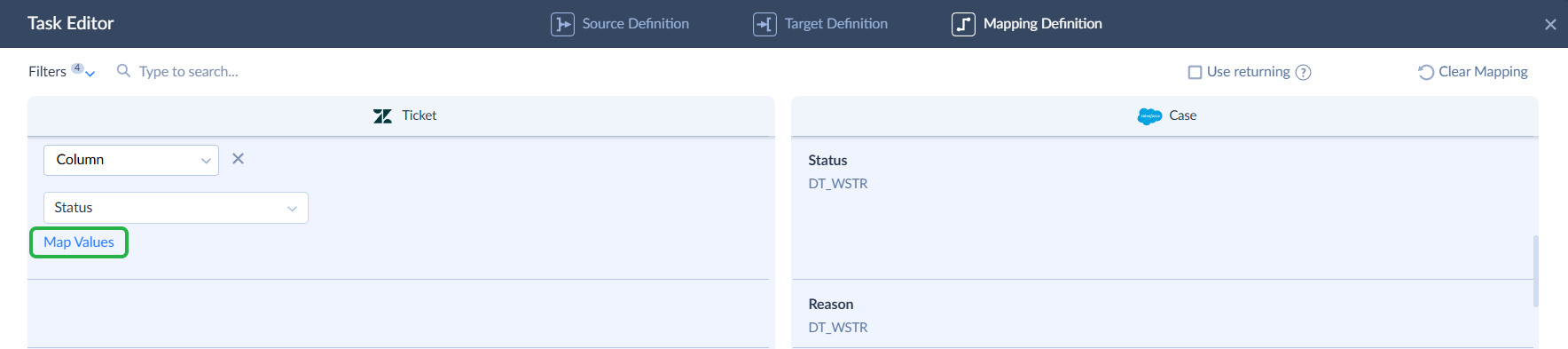
On the Mapping Definition tab of the Import task editor, assign the Column or Lookup mapping for a field.
-
Click Map values.

-
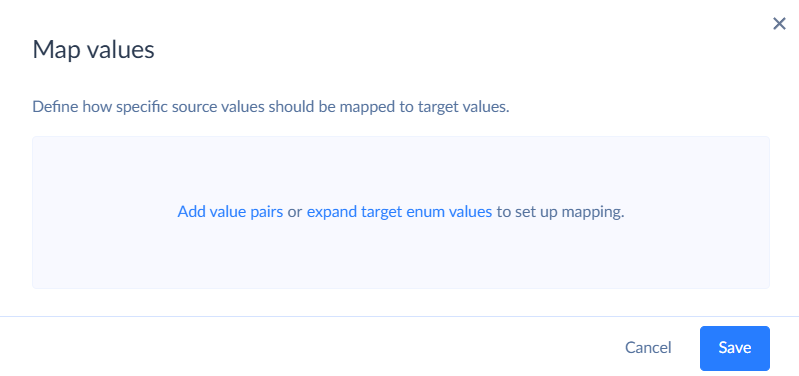
Click Add value pairs and enter or select the values.

If the target field is a picklist, click expand target enum values.
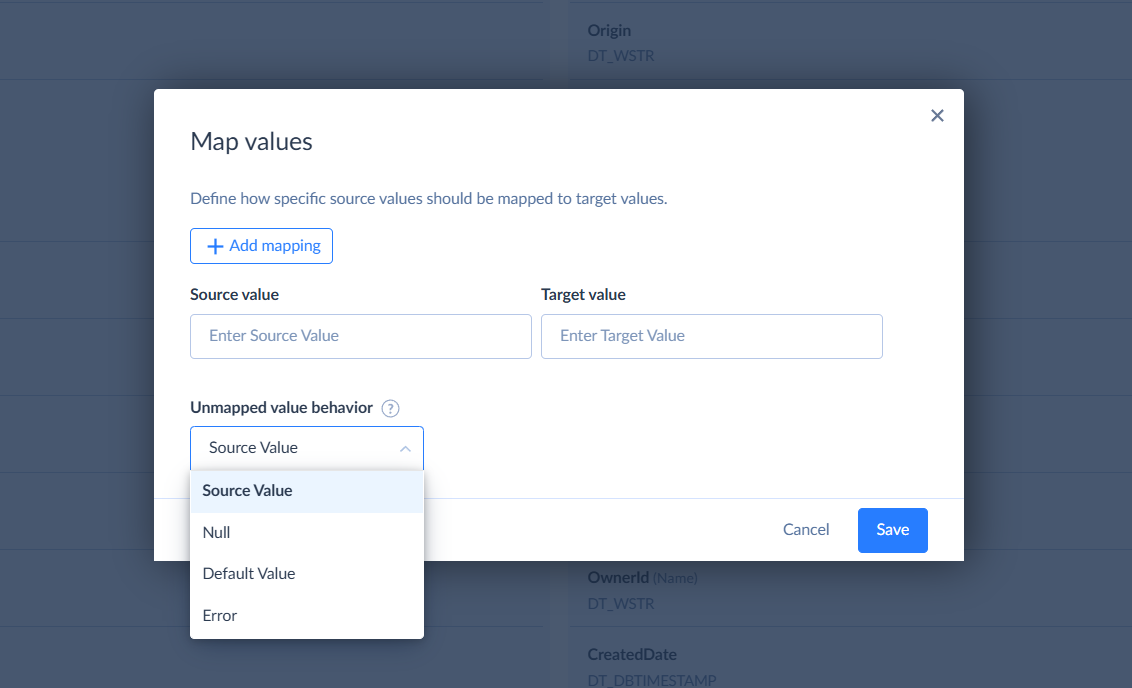
6. Optionally, set the Unmapped value behaviour and click Save.
Skyvia supports Value Mapping for the Column and Lookup mapping types.
Specifics
Data Types
You can use Value Mapping with source or target fields of the following data types:
| Data Type | Description |
|---|---|
| DT_STR | Fixed-length, non-Unicode string. Uses a code page for character encoding. |
| DT_WSTR | Fixed-length Unicode string. Stores characters using UTF-16. |
| DT_I1 | 1-byte signed integer. Range: −128 to 127. |
| DT_I2 | 2-byte signed integer. Range: −32,768 to 32,767. |
| DT_I4 | 4-byte signed integer. Range: −2,147,483,648 to 2,147,483,647. |
| DT_I8 | 8-byte signed integer. Very large whole numbers. |
| DT_R4 | 4-byte floating-point number (single precision). Used for approximate decimal values. |
| DT_R8 | 8-byte floating-point number (double precision). Higher precision for approximate decimal values. |
| DT_CY | Currency value with fixed precision (4 decimal places). Designed to avoid rounding errors in financial calculations. |
| DT_GUID | Globally unique identifier (128-bit value), typically shown as a hexadecimal string. |
| DT_DECIMAL | Exact numeric value with fixed precision and scale. Suitable for financial and high-accuracy calculations. |
| DT_NUMERIC | Exact numeric value with user-defined precision and scale. Similar to DT_DECIMAL but more configurable. |
You can combine the values of these types in Value Mapping using various combinations, for example, DT_WSTR -> DT_WSTR, DT_I4 -> DT_WSTR, DT_WSTR -> DT_I4, DT_I4 -> DT_I4, etc.
Unmapped Value Behaviour
Unmapped Value Behaviour defines how Skyvia treats source values not listed in the value mapping.

Possible behaviours are the following:
| Behaviour | Description |
|---|---|
| Source Value | Map the unlisted source value as it is |
| Null | Map NULL |
| Default Value | Map a specific value defined by the user |
| Error | Return an error for a record that contains the unlisted value |
Expand Target Values
If a target value is a picklist with multiple items, and you need to map them, Skyvia can read the possible item values from the target metadata.
To do that, click Expand target enum values.

How to Use Value Mapping
Example 1. Picklist Items Mapping
Suppose you create new Salesforce cases from Zendesk tickets and want to map the Status field. The problem is that Status is the picklist (enum) field with a predefined set of possible values. Both platforms use different names of possible Status values. With Value Mapping we can match the statuses between both platforms. To complete this task, do the following:
- Create the integration, set source and target connections, and add the import task.
- Select source and target objects and choose the operation.
- On the Mapping definition tab, select Column mapping for the Status field and click Map values.
- Click expand target enum values.

- Match the source and target status values, set the behaviour for values that are not listed.