Looker Studio Connector
Skyvia Looker Studio connector allows you to analyze and visualize data from cloud applications and databases directly in Google Looker Studio.
With Looker Studio connector you can:
- Connect to data sources not natively supported by Google Looker Studio.
- Build reports without managing a data warehouse or writing SQL queries.
- Combine data from different sources in one report.
How to Find Skyvia in Looker Studio
To locate Skyvia Looker Studio connector, perform the following steps:
- Go to Looker Studio.
- Create new data source or a new report.
- Type "Skyvia" in the search box.
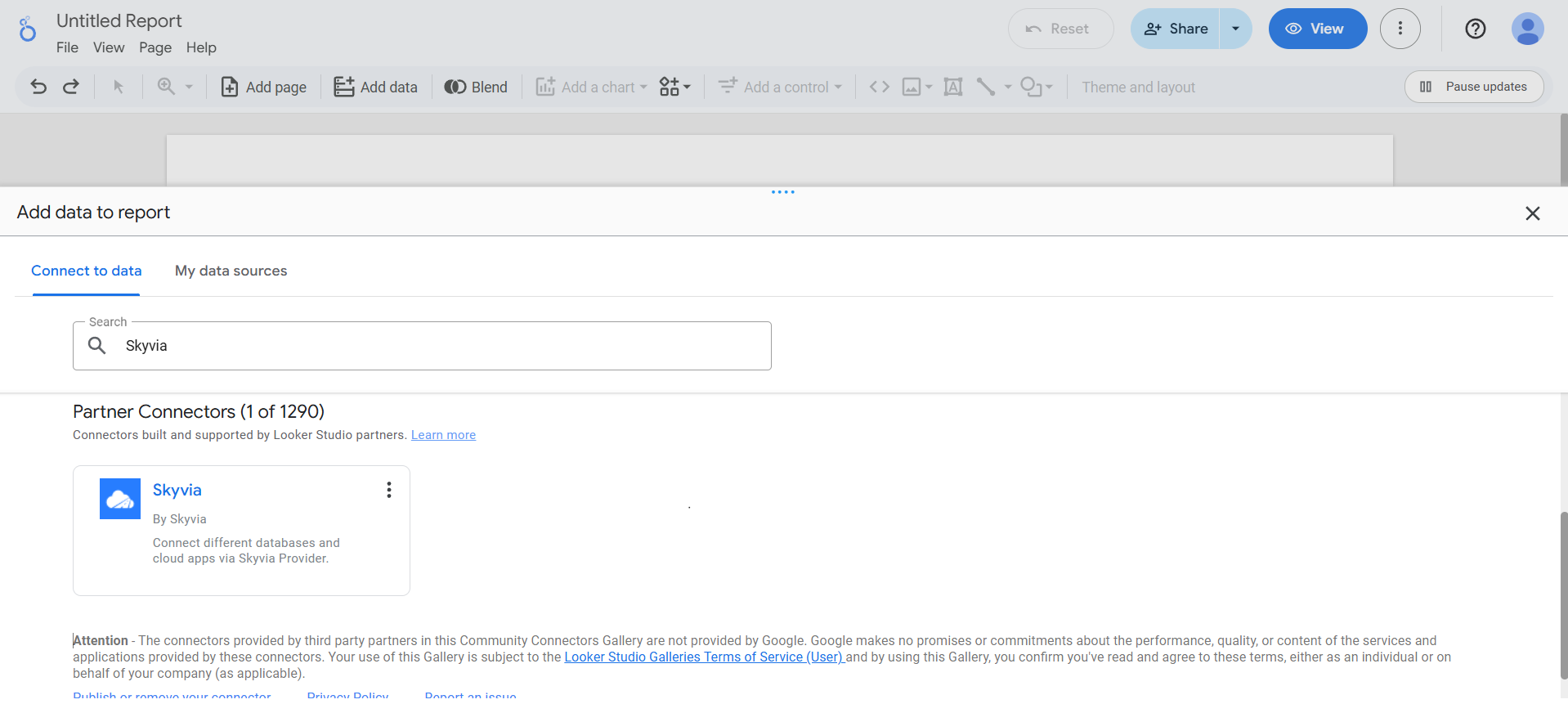
Authorization
To use the Looker Studio connector, you must allow access to your Google and Skyvia accounts.
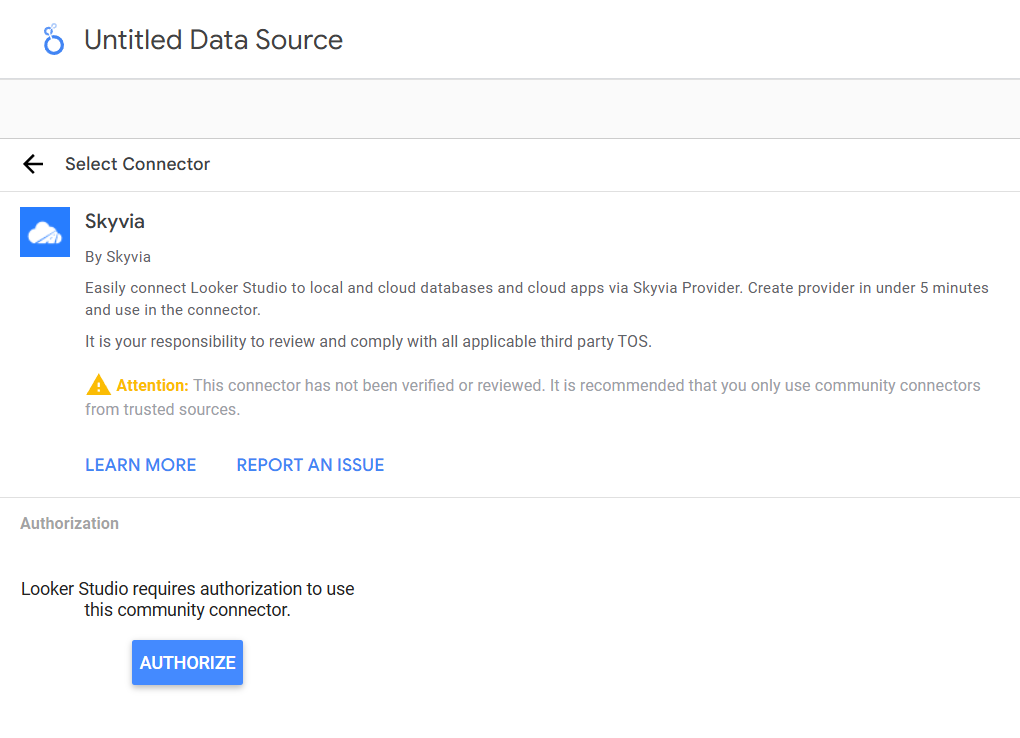
Allow Access to Google Account
-
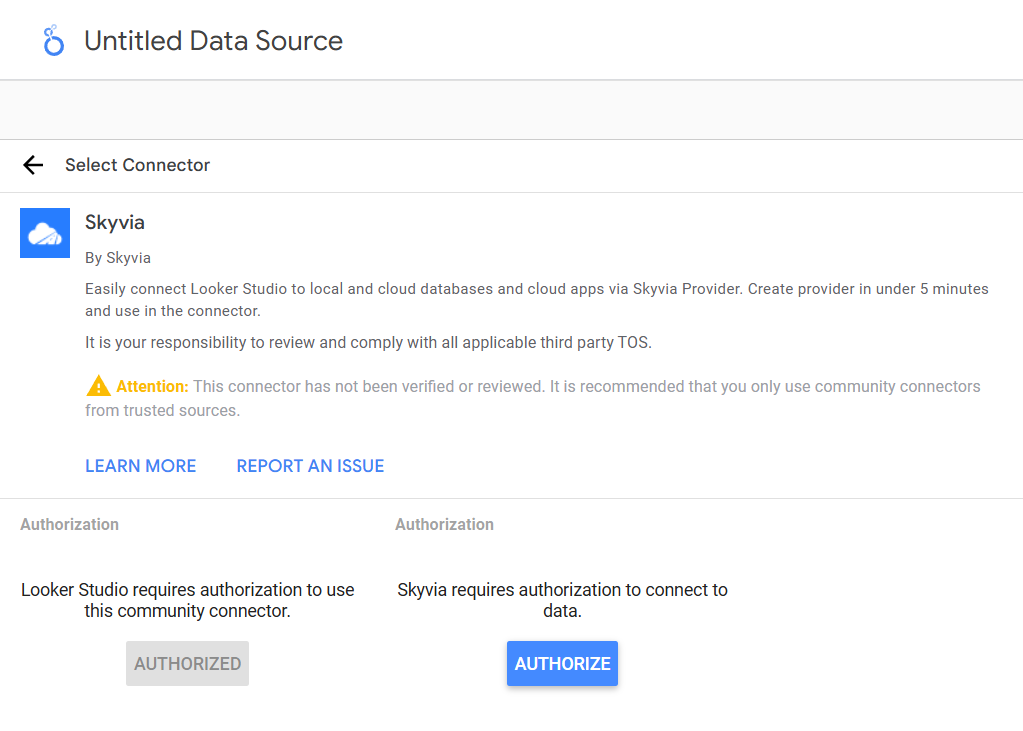
Click Authorize on the left.
-
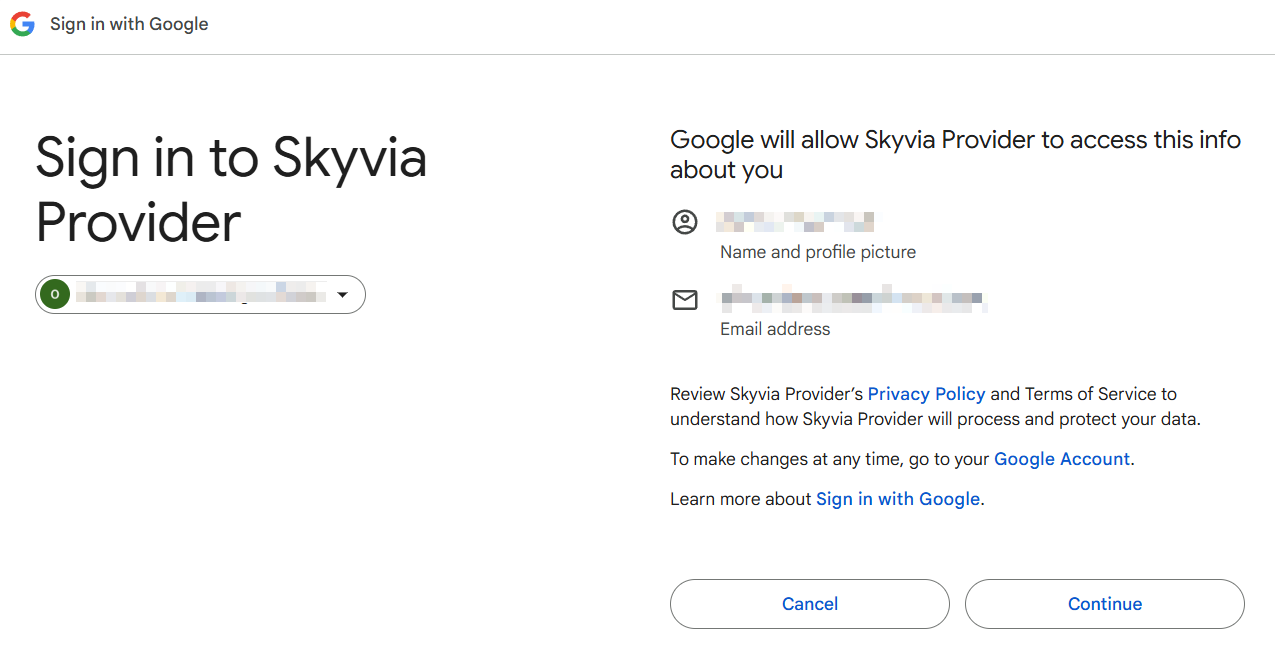
Choose Google account to use in Looker.
-
Allow Skyvia Looker Studio Connector to access your Google Account.
-
Allow Skyvia to connect to an external service.
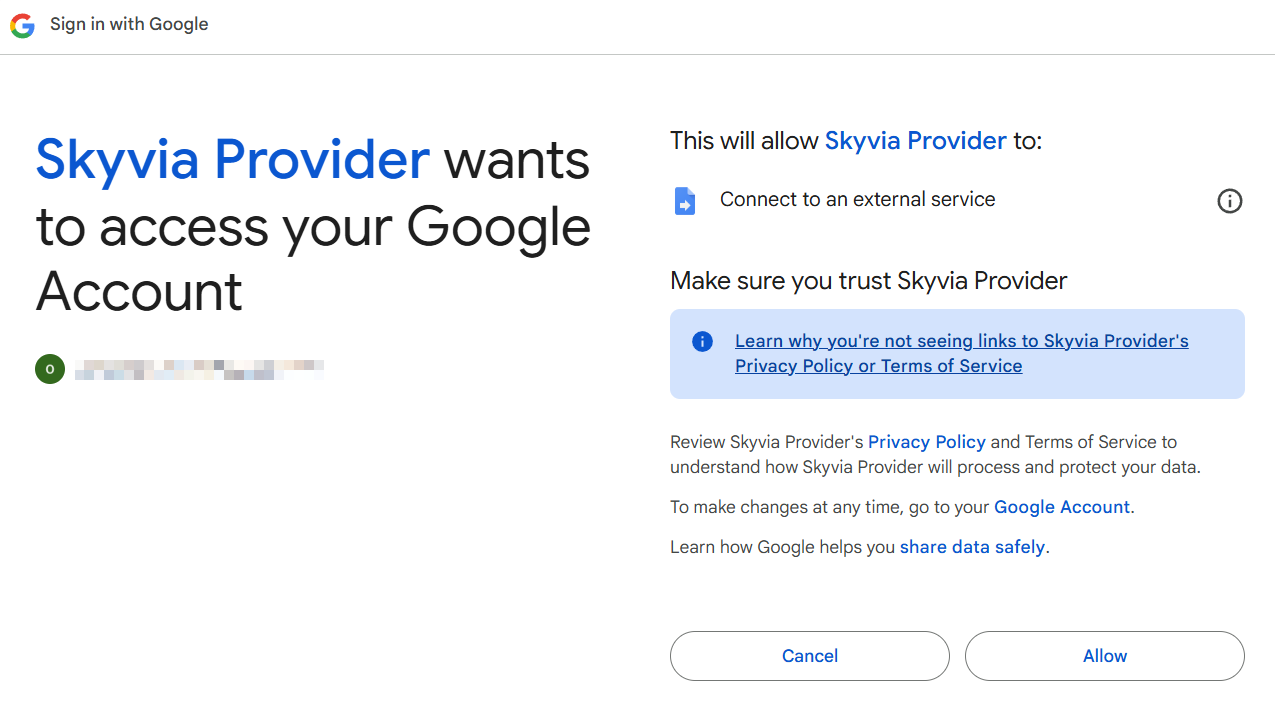
Allow Access to Skyvia Account
-
Click Authorize on the left to allow Looker Studio Connector to access Skyvia account.
-
Sign in to your Skyvia account.
Connecting Looker Studio to Data Source
-
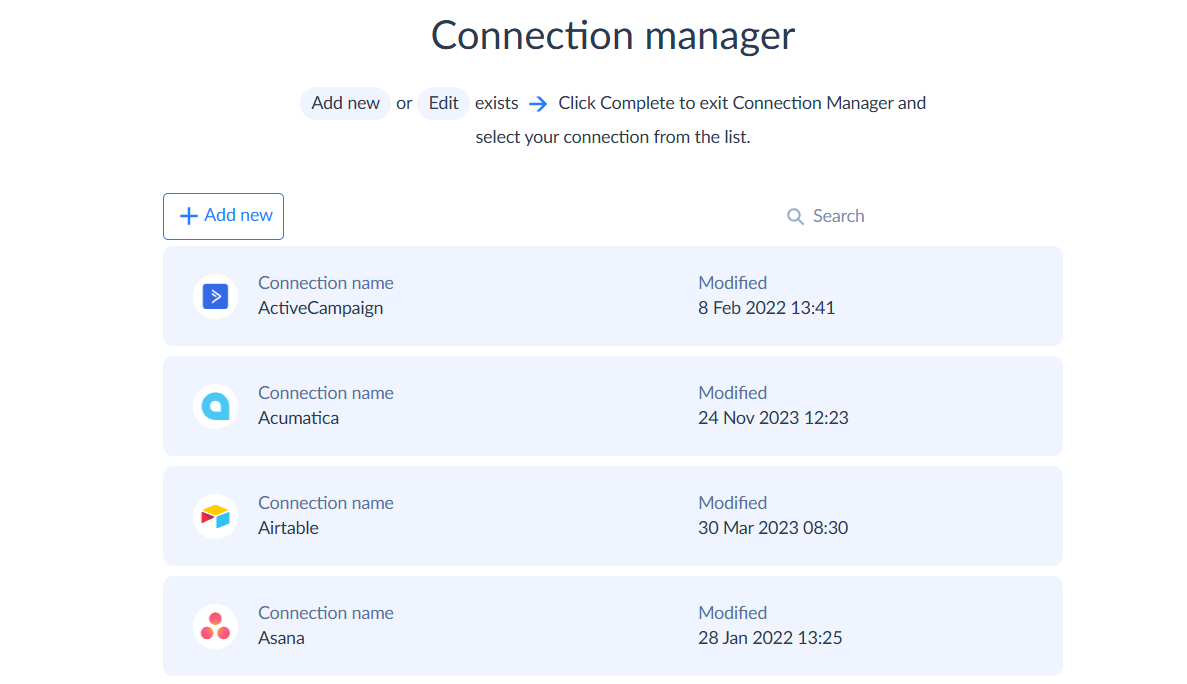
In the Connection Manager, add new or edit the existing connection.
-
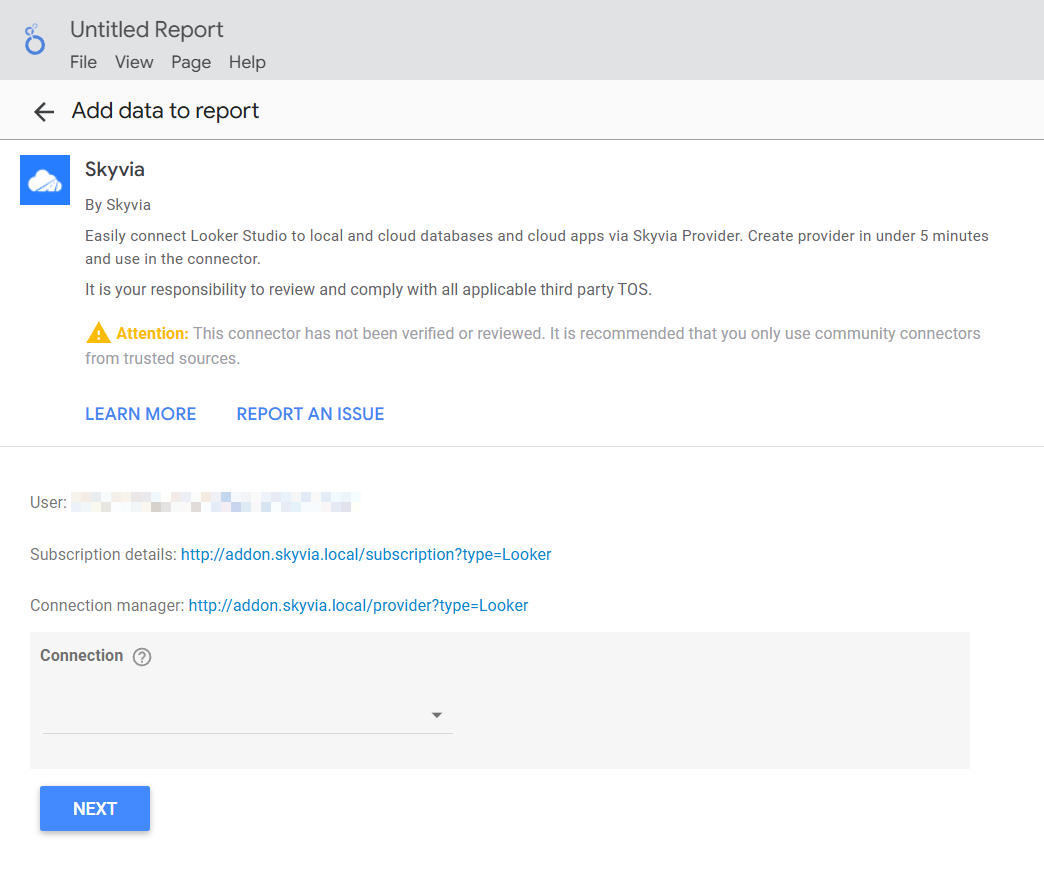
Select the desired source connection and click Next.
-
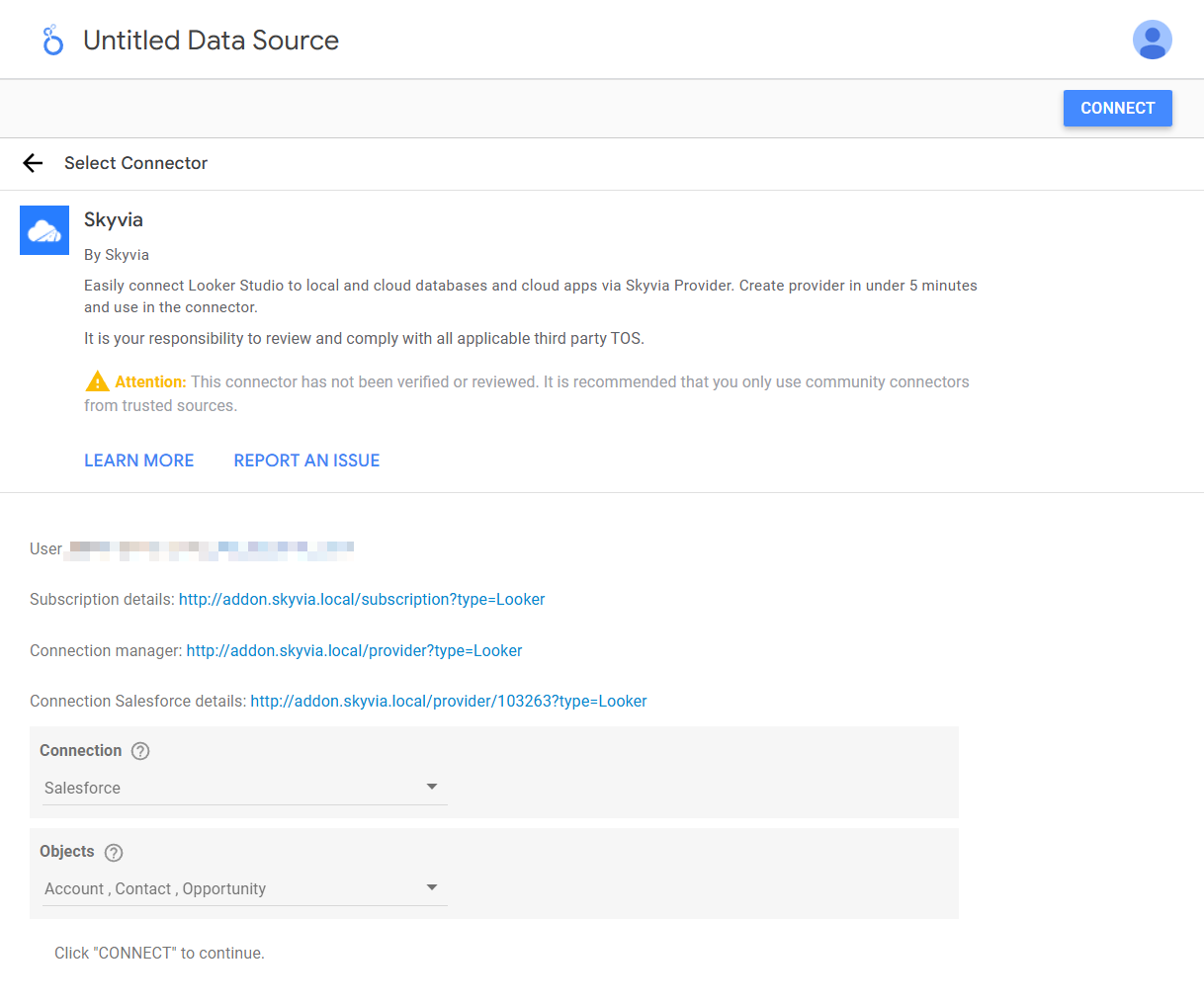
Select the objects you want to get data from.
Billing
Skyvia offers flexible billing options for Looker Studio connector through either monthly or annual subscription plans. Each subscription includes unlimited access to all data connections supported by Skyvia, with no restrictions on traffic volume or usage