Configuring dbt Transformation
dbt Transformation is a specific kind of an integration that transforms data in a target database, using a dbt project linked from a Git repository. It is executed using the dbt Core CLI, hosted on Skyvia.
Creating a dbt Transformation
To create a dbt integration, click + Create New in the top menu and select Dbt in the Integration column. When the dbt Transformation details page opens, perform the following steps:
- Select a target database connection.
- Connect to a Git repository.
- Select the branch to use.
- Specify additional dbt settings - select the dbt Core Version and specify the number of Threads (max number of nodes running in parallel) to use.
- Optionally schedule dbt transformation for automatic execution.
Target and Git Connections
First, select or create a connection to the target database. The list of supported databases can be found here.
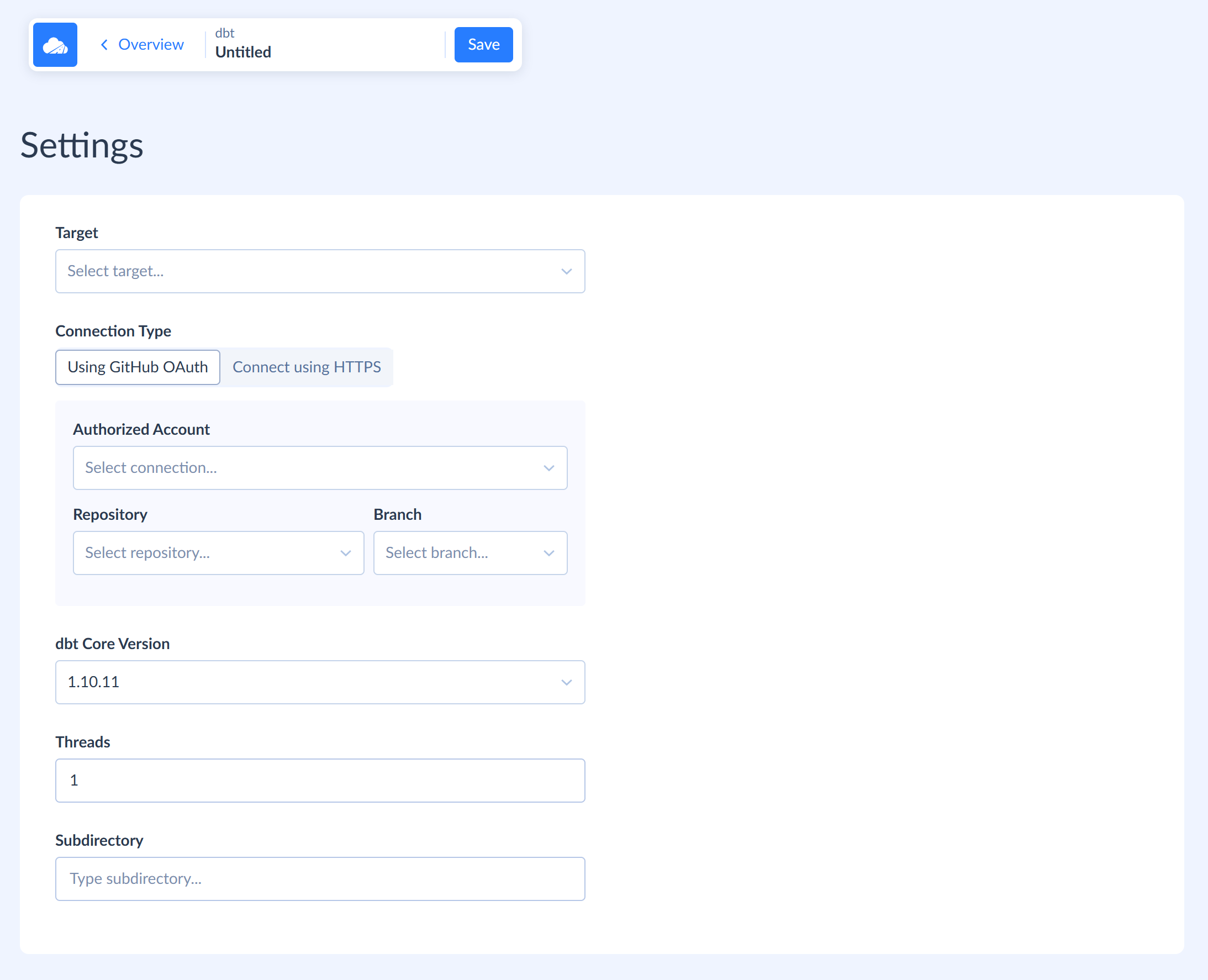
After this, you need to specify Git repository of the dbt project to run against the target. You can use a GitHub connections or connect to a Git repository using HTTPS.
GitHub Connection
To use a GitHub connection, perform the following steps:
-
In the Authorized Account list, either select an existing connection to GitHub or click New Connection and create a new GitHub connection.
-
Select the Repository and Branch to build and run.
HTTPS Connection
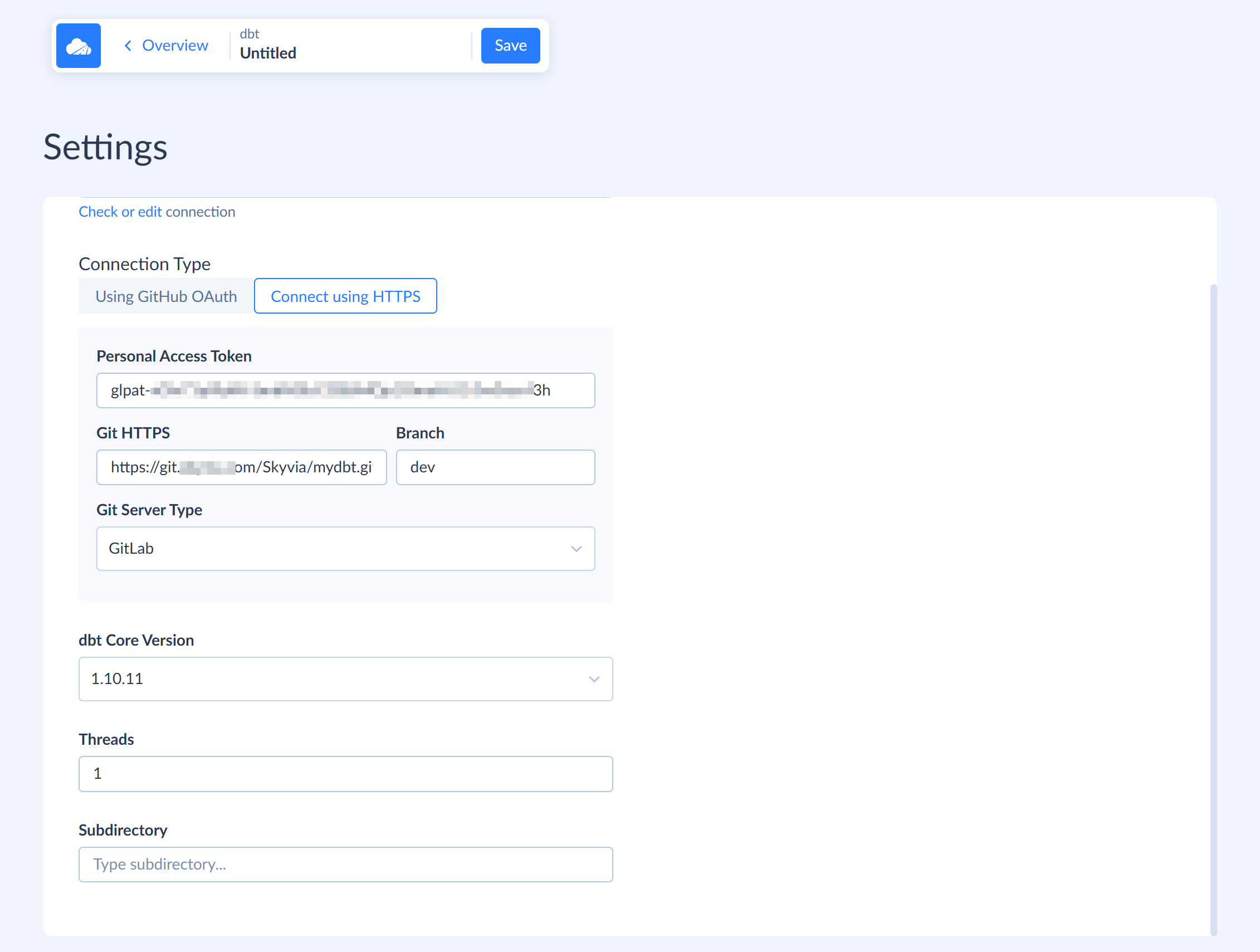
To connect using HTTPS, perform the following actions:
- Click Connect using HTTPS.
- Specify your Personal Access Token, for example,
glpat-xGlv71qf9pW-SmbNGlcCl286MQp1OmoH.01.0w3ryc43h. We recommend using a token with at leastread-apiscope. - Specify the Git HTTPS URL of the repository and Branch to build and run. Note that the specified URL should be the repository clone URL that ends with
.git. - Select the Git Server Type: GitHub, GitLab, BitBucket, or Unknown.
See how to obtain Personal Access Token for:
- GitHub
- GitLab
- BitBucket. BitBucket calls it App password, but Skyvia uses it in the same way as access tokens for other servers.
dbt Settings
Optionally, select the following additional dbt settings:
- dbt Core Version - the version of the dbt Core to use. See more details here.
- Threads - the maximum number of paths through the directed acyclic graph of links between models dbt may work on at once. You can find more information in the dbt documentation.
- Subdirectory - the relative path to the dbt project in the repository. By default it's the root repository folder.