Expression Mapping
Expression mapping allows using simple and complex expressions and formulas to transform source data into target field values. Skyvia offers AI assistant to create expressions by describing what you need them to do in natural language.
To use expression mapping, first click the Column list and select Expression.
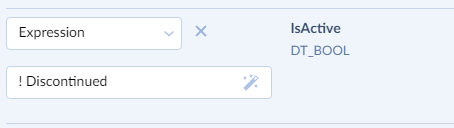
Then you can either enter the expression in the box manually or click the  button and open the Expression editor. In the expression editor, you can see the list of available source fields, functions, and operators, validate and test them, and even generate expressions with the help of AI.
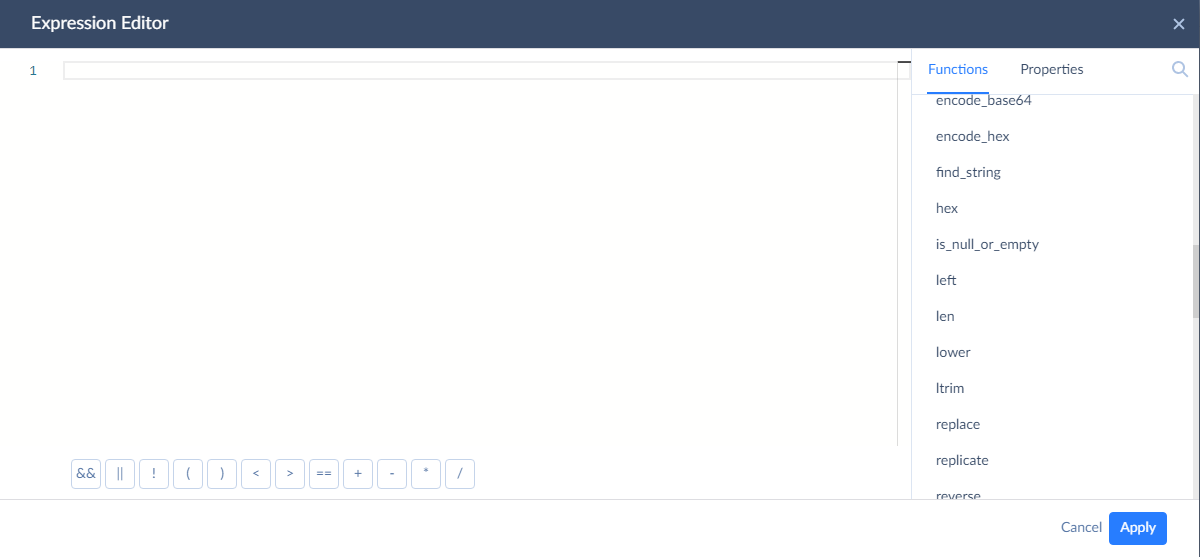
You can find the information on the expression syntax and the reference on available operators and functions in the Expression Syntax section.
Old integration runtime uses Microsoft SQL Integration Services expression syntax. You can find the information about it in Microsoft documentation. For more information about main syntax differences in the Main Differences between Old and New Runtime Syntax topic.