OpenAI
OpenAI is an artificial intelligence (AI) research organization that developed the GPT family of large language models, the DALL-E series of text-to-image models, and the Sora series of text-to-video models.
Data integration: Skyvia supports OpenAI connector in the Lookup component of Data Flow and Action component of Control Flow.
Backup: Skyvia Backup does not support OpenAI backup.
Query: Skyvia Query does not support OpenAI.
Establishing Connection
To create a connection to OpenAI, you need to get OpenAI API Key and optionally the Organization ID.
Getting Credentials
To obtain the API Key, perform the following steps:
-
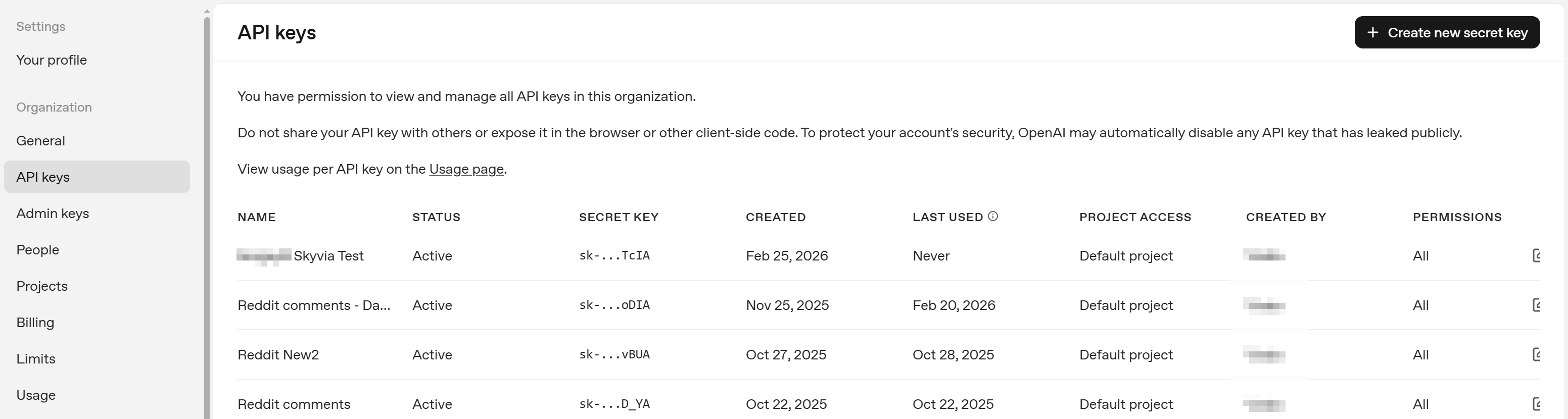
Sign in to your OpenAI account and go to the OpenAI API Key settings at https://platform.openai.com/settings/organization/api-keys
-
Click Create new secret key on the top right.
-
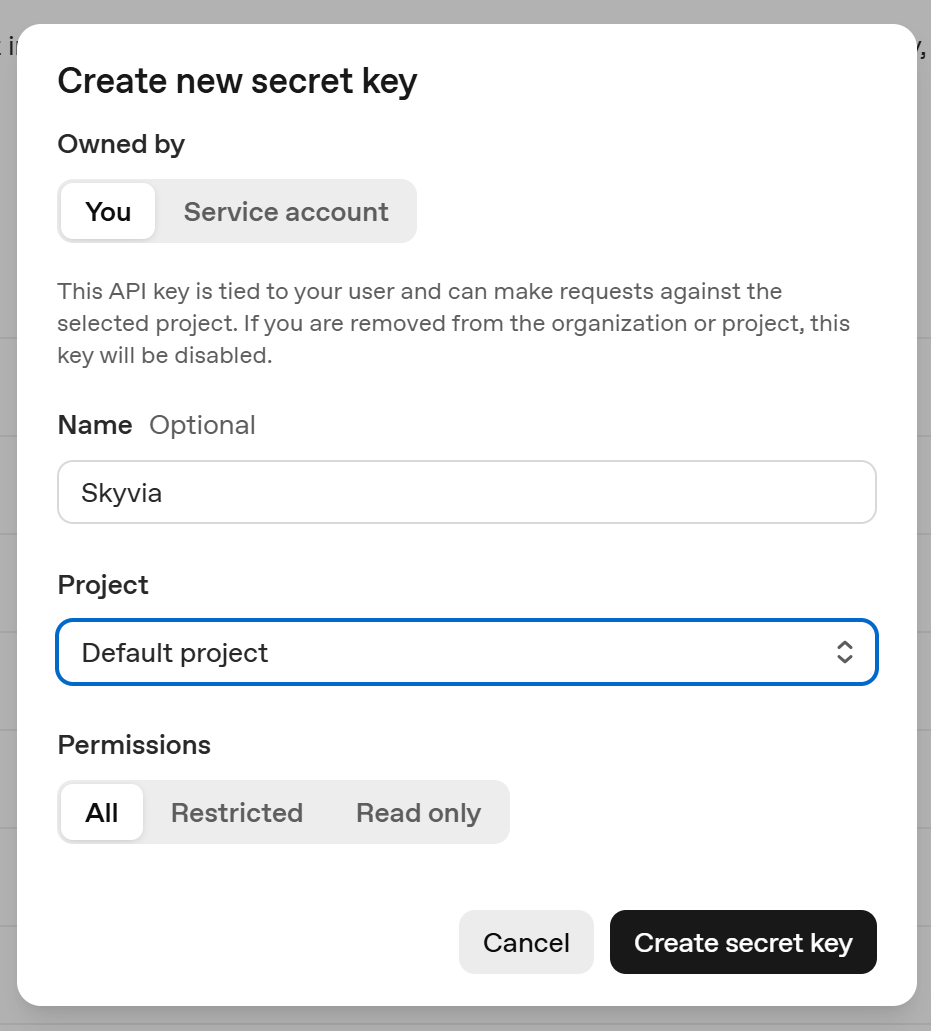
Enter API key Name and select project.
-
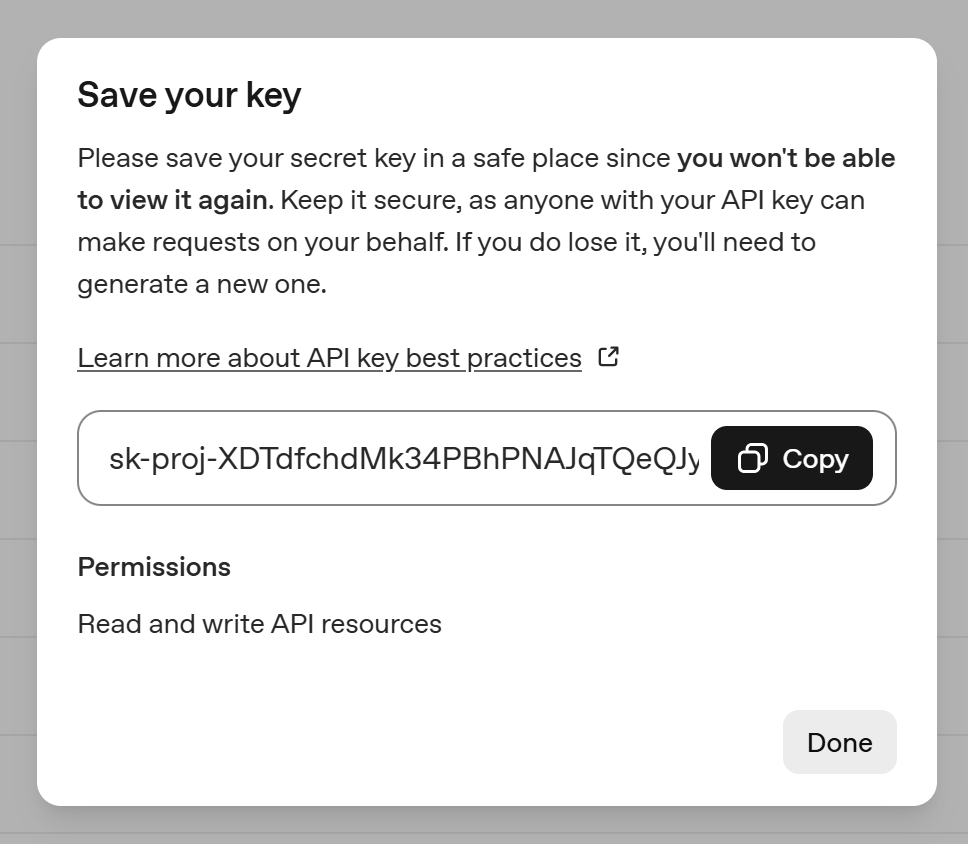
Copy the created API key.
You can obtain the organization ID in your organization settings, at [https://platform.openai.com/settings/organization/general]. Organization ID is needed If you belong to multiple organizations.
Creating Connection
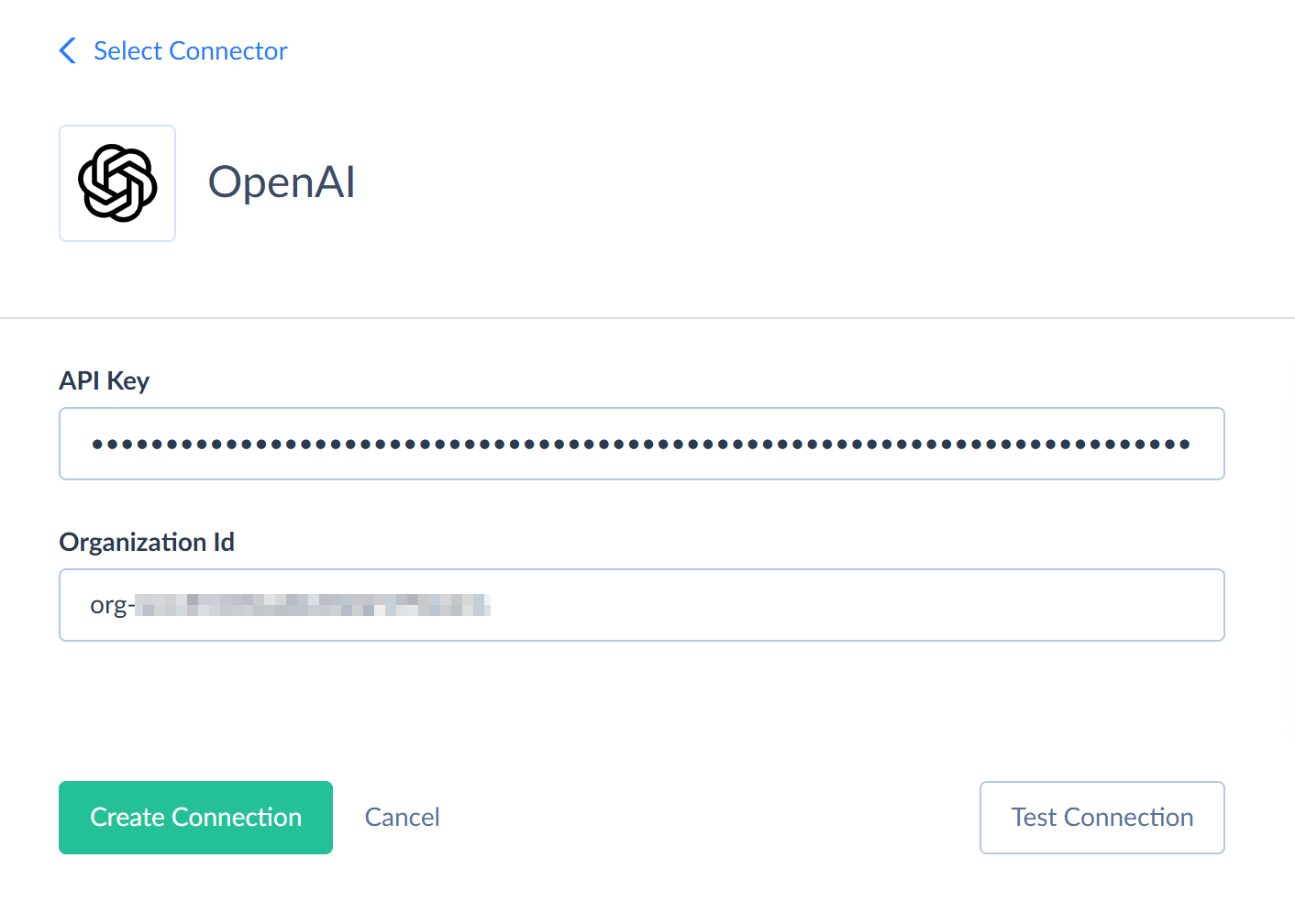
To connect to OpenAI, enter your API Key and, optionally, OrganizationID.
Connector Specifics
OpenAI connector does not contain any objects as it does not provide access to any data. It provides access to OpenAI API that allow you to send prompts and obtain results from AI models. You can use them via different actions and stored procedures that you can call in the Execute Command action.
Stored Procedures
Skyvia supports the following stored procedures for the OpenAI connector.
GenerateResponse
To generate a response to the provided message with an AI model, use the command:
CALL GenerateResponse(:Message, :Instructions, :Model, :PreviousResponseId, :Temperature, :TopP, :MaxOutputTokens, :MaxToolCalls, :Store, :ReasoningEffort)
| Parameter Name | Description |
|---|---|
| Message | The prompt for the AI. This parameter is required. |
| Instructions | A system message inserted into the model's context. |
| Model | The ID of the model to use for generating a response. See OpenAI model guide for more information about models. |
| PreviousResponseId | The unique ID of the previous response to the model. You can use it to create multi-turn conversations. |
| Temperature | The sampling temperature to use, between 0 and 2. Higher values will make the result more random, lower values - more determined. |
| TopP | This parameter is used as an alternative to the Temperature parameter. It is a number from 0 to 1. It uses nucleus sampling, where the model considers the results of the tokens with top_p probability mass. The value 0.1 means that only the tokens comprising the top 10% probability mass are considered. It is not recommended to specify both Temperature and TopP parameters. |
| MaxOutputTokens | The maximum number of output tokens that can be generated for a response, including reasoning. |
| MaxToolCalls | The maximum number of total calls to built-in tools. |
| Store | Determines whether to store the generated response to retrieve it later via API. |
| ReasoningEffort | This parameter guides the model on how much to think when performing a task. Supported values are model-dependent and can include: none, minimal, low, medium, high, and xhigh |
The generated response is returned in the Response_Result field. The procedure also returns the response ID, status, error message in case of an error, token usage for the response and reasoning, as well as parameter values used in a call. You can find details in the OpenAI Responses API documentation.
ModerateText
To moderate text with AI, use the following command:
CALL ModerateText(:Text, :Model)
| Parameter Name | Description |
|---|---|
| Text | The text to moderate. This parameter is required. |
| Model | The model to use for moderation. |
The procedure returns a number of boolean fields, determining whether the text is flagged against different moderation categories and per-category scores. See OpenAI Moderation API documentation for more information about the result fields.
GetEmbeddings
To сreate an embedding vector representing the input text, use the following command:
CALL GetEmbeddings(:Text, :Model)
The procedure returns the result embedding vector, model used, and used token counts.
| Parameter Name | Description |
|---|---|
| Text | The text to convert to an embedding vector. This parameter is required. |
| Model | The model to use. |
AnalyzeImage
To analyze an image with an AI model, use the command:
CALL AnalyzeImage(:Image, :Message, :Instructions, :Model, :PreviousResponseId, :Temperature, :TopP, :MaxOutputTokens, :MaxToolCalls, :Store, :ReasoningEffort)
| Parameter Name | Description |
|---|---|
| Image | The image to analyze. This parameter is required. |
| Message | The prompt for the AI. This parameter is required. |
| Instructions | A system message inserted into the model's context. |
| Model | The ID of the model to use for generating a response. See OpenAI model guide for more information about models. |
| PreviousResponseId | The unique ID of the previous response to the model. You can use it to create multi-turn conversations. |
| Temperature | The sampling temperature to use, between 0 and 2. Higher values will make the result more random, lower values - more determined. |
| TopP | This parameter is used as an alternative to the Temperature parameter. It is a number from 0 to 1. It uses nucleus sampling, where the model considers the results of the tokens with top_p probability mass. The value 0.1 means that only the tokens comprising the top 10% probability mass are considered. It is not recommended to specify both Temperature and TopP parameters. |
| MaxOutputTokens | The maximum number of output tokens that can be generated for a response, including reasoning. |
| MaxToolCalls | The maximum number of total calls to built-in tools. |
| Store | Determines whether to store the generated response to retrieve it later via API. |
| ReasoningEffort | This parameter guides the model on how much to think when performing a task. Supported values are model-dependent and can include: none, minimal, low, medium, high, and xhigh |
The generated response is returned in the Response_Result field. The procedure also returns the response ID, status, error message in case of an error, token usage for the response and reasoning, as well as parameter values used in a call. You can find details in the OpenAI Responses API documentation.
GenerateImage
To generate an image with an AI model, use the command:
CALL GenerateImage(:Instructions, :Model, :Size , :Background, :OutputFormat , :OutputCompression , :Moderation)
| Parameter Name | Description |
|---|---|
| Instructions | The description of the image. This parameter is required. |
| Model | Required. The ID of the model to use for generating an image. |
| Size | The size of the generated image. |
| Background | Determines whether the image should have transparent Background. The allowed values are: transparent, opaque, and auto. |
| OutputFormat | The format of the generated images. Applicable only for GPT models. The supported values are png, jpeg, and webp. |
| OutputCompression | The compression level - from 0 to 100%. Applicable only for webp and jpeg output formats. |
| Moderation | Content moderation level. Can be low for less restrictive filtering or auto (the default value). |
The generated image is returned in the Image field. The procedure also returns the used parameter values and token usage. You can find details in the OpenAI Generate Image API documentation.
EditImage
To edit an image with an AI model, use the command:
CALL EditImage(:Instructions, :Image, :InputFormat, :Mask, :Model, :OutputSize , :Background, :OutputFormat , :OutputCompression , :Moderation)
| Parameter Name | Description |
|---|---|
| Instructions | The description of the image. This parameter is required. |
| Image | The image to edit. This parameter is required. |
| InputFormat | The format of the input image. The supported values are png, jpeg, and webp. This parameter is required. |
| Mask | The mask image with the transparent area to edit. This parameter is required. |
| Model | Required. The ID of the model to use for generating a response. |
| OutputSize | The size of the result image. |
| Background | Determines whether the image should have transparent Background. The allowed values are: transparent, opaque, and auto. |
| OutputFormat | The format of the generated images. Applicable only for GPT models. The supported values are png, jpeg, and webp. |
| OutputCompression | The compression level - from 0 to 100%. Applicable only for webp and jpeg output formats. |
| Moderation | Content moderation level. Can be low for less restrictive filtering or auto (the default value). |
The generated image is returned in the Image_Created field. The procedure also returns the source image, used parameter values, and token usage. You can find details in the OpenAI Edit Image API documentation.
CreateTranscription
To create a transcription for an audio file with an AI model, use the command:
CALL CreateTranscription(:Input, :InputFormat, :Model, :Instructions, :Language, :Temperature)
| Parameter Name | Description |
|---|---|
| Input | The audio fie to transcribe. Audio must be in one of the following formats: flac, mp3, mp4, mpeg, mpga, m4a, ogg, wav, or webm. This parameter is required. |
| InputFormat | The format of the input audio. Can be flac, mp3, mp4, mpeg, mpga, m4a, ogg, wav, or webm. This parameter is required. |
| Model | Required. The ID of the model to use for transcribing the audio. |
| Instructions | An optional text to guide the model's style or continue a previous audio segment. It's language must be the same as the audio language. |
| Language | The language of the input audio. It is recommended to specify the language in the ISO-639-1 format. |
| Temperature | The sampling temperature to use, between 0 and 1. Higher values will make the result more random, lower values - more determined. |
The generated transcription is returned in the Transcription field. The procedure also returns the usage type and tokens used. You can find details in the OpenAI Transcriptions API documentation.
CreateTranslation
To create an English translation text for an audio file with an AI model, use the command:
CALL CreateTranslation(:Input, :InputFormat, :Model, :Instructions, :Language, :Temperature)
| Parameter Name | Description |
|---|---|
| Input | The audio file to translate. Audio must be in one of the following formats: flac, mp3, mp4, mpeg, mpga, m4a, ogg, wav, or webm. This parameter is required. |
| InputFormat | The format of the input audio. Can be flac, mp3, mp4, mpeg, mpga, m4a, ogg, wav, or webm. This parameter is required. |
| Model | The ID of the model to use for transcribing the audio. |
| Instructions | An optional text to guide the model's style or continue a previous audio segment. It's language must be the same as the audio language. |
| Language | The language of the input audio. It is recommended to specify the language in the ISO-639-1 format. |
| Temperature | The sampling temperature to use, between 0 and 1. Higher values will make the result more random, lower values - more determined. |
The generated translation is returned in the Translation field.
GenerateAudio
To generate an audio file for the specified input text with an AI model, use the command:
CALL GenerateAudio(:Input, :Model, :Instructions, :Language, :OutputFormat, :Temperature)
| Parameter Name | Description |
|---|---|
| Input | The text to generate audio for. The maximum length is 4096 characters. This parameter is required. |
| Model | The ID of the model to use for generating the audio. |
| Voice | The voice to use. Can be: alloy, ash, ballad, coral, echo, fable, onyx, nova, sage, shimmer, verse, marin, or cedar. This parameter is required. |
| Instructions | An optional text to guide the model's style or continue a previous audio segment. It's language must be the same as the audio language. |
| ResponseFormat | The format of the output audio. Can be flac, mp3, mp4, mpeg, mpga, m4a, ogg, wav, or webm. |
| Speed | The speed of the generated audio. The minimal value is 0.25, the maximal is 4.0. The default value is 1.0. |
The generated audio is returned in the Audio field.
Supported Actions
Skyvia supports the standard Execute Command action for OpenAI, as well as the following custom actions:
- Generate Response
- Moderate Text
- Get Embeddings
- Analyze Image
- Generate Image
- Edit Image
- Create Transcription
- Create Translation
- Generate Audio
- Summarize Text
- Classify Text