Sage Intacct
Sage Intacct is a cloud financial management platform that covers the general ledger, accounts payable and receivable, cash management, purchasing, order entry, and project accounting.
Data integration: Skyvia supports importing data to and from Sage Intacct, exporting Sage Intacct data to CSV files, replicating Sage Intacct data to relational databases, and synchronizing Sage Intacct data with other cloud apps and relational databases.
Backup: Skyvia Backup does not support Sage Intacct.
Query: Skyvia Query supports Sage Intacct.
Establishing Connection
The Sage Intacct connector supports two authentication types:
- OAuth 2.0 — you sign in with your Sage Intacct account and grant Skyvia access.
- Server-to-Server — you provide the name of a web services user authorized for your application.
Both types require the Client Id and Client Secret of an application that you register in the Sage Intacct Developer Portal.
To create a connection to Sage Intacct, select the authentication type and provide the required credentials.
Getting Credentials
Web Services License
Registering an application requires a Sage Intacct Web Services license, which consists of a Sender ID and a Sender Password. Sage issues this license to Sage Intacct customers and partners. To get one, contact your Sage Intacct account manager or partner representative.
Authorize your Sender ID in the company you want to connect to:
- In Sage Intacct, go to Company → Setup → Configuration → Company, open the Security tab, and click Edit.
- In the Web Services authorizations section, click Add.
- Enter your Sender ID and set Status to Active. Sender IDs are case-sensitive, and you cannot change them after you add the authorization.
- Click Save.
For details, see Add Web Services authorizations.
Client ID and Client Secret
To register an application, perform the following steps:
-
Open the Sage Intacct Developer Portal, click View Console, and sign in with your Sage account.
-
In the navigation menu, click Applications → New Application.
-
In Select an API, select Sage Intacct.
-
Under Sage Intacct Developer Programme, click Enrol and enter your Sender ID as the Intacct Web Services License Key. Skip this step if you have already enrolled.
-
Click Applications → New Application again, select Sage Intacct.
-
Enter an Application name.
-
Specify the following API integration settings:
- Redirect URIs —
https://app.skyvia.com/oauthcallback/sageintacct - Origin Domains —
https://app.skyvia.com - Intacct Web Services License Password — your Sender Password
- Client Scope — Production. You cannot change the client scope after you create the application.
- Redirect URIs —
-
Click Create Application.
Sage reviews your application and sends a confirmation to the email address you provided. After Sage approves the application, you can retrieve its Client ID and Client Secret.
For details, see Register a new application.
Web Services User for Server-to-Server Authentication
Server-to-Server authentication runs under a web services user instead of an interactive sign-in. Perform the following steps:
- In Sage Intacct, go to Company → Admin → Users, roles, and groups and click + next to Web Services users. For details, see Add a Web Services user.
- Copy web service User ID. You will need it later.
- Assign the user the permissions or the role it needs.
- Go to Company → Setup → Configuration → Company, open the Security tab, and click Edit.
- In the Authorized Client Applications section, click Add.
- Enter the Client ID of your application and the Web Services User ID you created. The user ID is case-sensitive.
For details, see Client credentials grant type.
Creating OAuth 2.0 Connection
To create an OAuth 2.0 connection to Sage Intacct, perform the following steps:
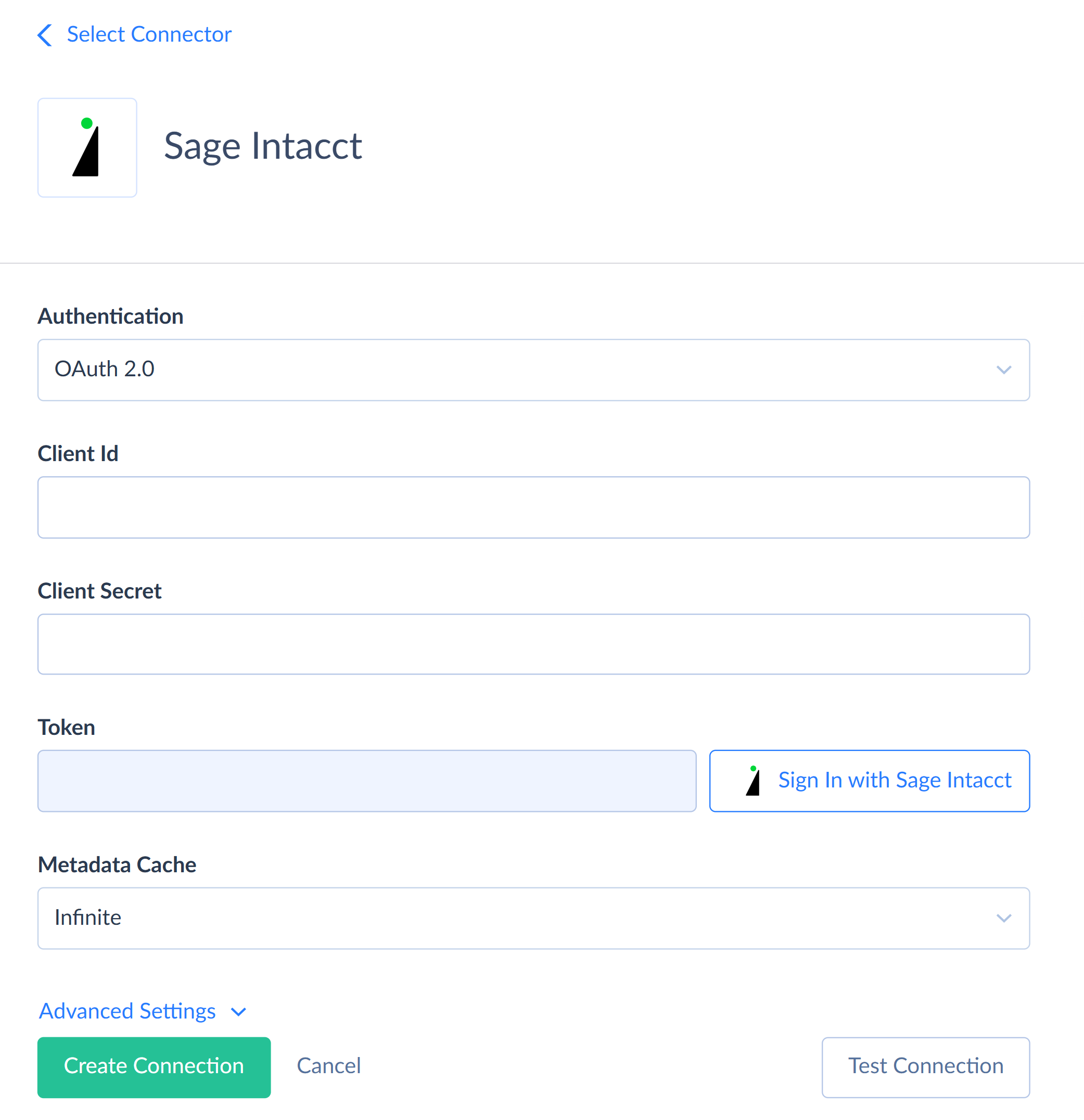
- Enter the Client Id and Client Secret of your application.
- Click Sign In with Sage Intacct.
- In the opened window, sign in to Sage Intacct.
- Click Accept to grant Skyvia access to your Sage Intacct data.
- Optionally, select the Entity to connect to.
Creating Server-to-Server Connection
To create a Server-to-Server connection to Sage Intacct, perform the following steps:

- Enter the Client Id and Client Secret of your application.
- In Service User Name, enter the user ID of the authorized web services user.
- Optionally, select the Entity to connect to.
Additional Connection Parameters
Metadata Cache
You can specify the period after which Metadata Cache expires. By default, the cache doesn't expire. Keeping the cache enabled reduces the number of requests to the Sage Intacct metadata API.
API Concurrency
This parameter limits the number of API requests that Skyvia sends per second. Sage Intacct allows more concurrent requests on higher performance tiers, so a higher value can read and write data faster. Use your performance tier as a guide when choosing the value.
For details, see Performance tiers.
Connector Specifics
Object Peculiarities
Sage Intacct doesn't have a fixed list of objects. Skyvia loads the list from your Sage Intacct company, so the available objects depend on the modules you use.
Transaction Definition Objects
Sage Intacct uses transaction definitions to configure different transaction types, such as sales orders or purchase orders. Skyvia exposes an additional object for each transaction definition, because their records and fields differ.
Skyvia creates additional objects for the following standard objects:
- Order_Document
- Order_DocumentLine
- Order_RecurringDocument
- Purchasing_Document
- Purchasing_DocumentLine
- Purchasing_RecurringDocument
Skyvia names such objects using the <StandardObject>_<TransactionDefinitionId> pattern. For example, a transaction definition with the SalesOrder ID exposes the Order_Document_SalesOrder, Order_DocumentLine_SalesOrder, and Order_RecurringDocument_SalesOrder objects.
These objects contain only the records of that transaction definition and can include fields specific to it.
Extended Request Fields
For some objects, Sage Intacct API returns only part of the fields when querying multiple records. To retrieve missing fields, Skyvia sends additional requests for each page of records, which can increase API usage and affect performance. Skyvia sends these requests only when your query includes at least one such field, so exclude such fields when you don't need their values.
To check whether a field requires additional requests, open the object in Query, click the information icon next to the field name, and look at the ExtendedRequest property.
Binary Content Fields
The Entity, File, and AR_DunningCustomer objects contain binary fields, and Sage Intacct returns their content together with the record data. Querying these objects can slow down data retrieval.
Write-only Fields
The PaymentDate field is required when you insert records into the AP_Payment object, but Sage Intacct never returns it. The field stays empty both when you read the object and when you use the Returning feature.
Nested Objects
Some fields store nested records in JSON format. Every such field has a matching object with the same data, so you can read nested records either through the parent object or from the matching object.
For example, the Lines field of the AP_Bill object corresponds to the AP_BillLine object.
Filtering Specifics
Sage Intacct supports the following native filters:
| Field Type | Operators |
|---|---|
| Primary key | =, IN |
| Boolean | =, != |
| Picklist, String | =, !=, IN |
| Integer, Long, Double, Decimal, Date, DateTime | =, !=, <, <=, >, >=, IN, BETWEEN |
Native filtering is not available for extended request fields and for the fields that store URLs, such as WebURL. To check whether Skyvia filters a field natively, open the object in Query, click the information icon next to the field name, and check the Filterable property.
Sorting Specifics
Sage Intacct supports native sorting for the Boolean, Integer, Long, Double, Decimal, Date, DateTime, and Picklist fields, and for most String fields.
Native sorting is not available for extended request fields and for the fields that store URLs.
Incremental Replication and Synchronization
Skyvia supports Replication with Incremental Updates for the Sage Intacct objects that contain the CreatedDateTime or ModifiedDateTime field.
Skyvia supports Synchronization for the objects that support Incremental Updates and the INSERT and UPDATE operations.
DML Operations Support
Skyvia supports the following DML operations for Sage Intacct.
| Operation | Object |
|---|---|
| INSERT, UPDATE, DELETE | AccountLabelTaxGroup, AP_AccountLabel, AP_Adjustment, AP_AdjustmentLine, AP_Advance, AP_AdvanceLine, AP_Bill, AP_BillLine, AP_CheckRun, AP_JointPayee, AP_Payment, AP_RecurringBill, AP_RecurringBillLine, AP_Summary, AP_Term, AP_Vendor, AP_VendorAccountNumber, AP_VendorContact, AP_VendorEmailTemplate, AP_VendorGroup, AP_VendorType, ApplicationEnablementFa, AR_AccountLabel, AR_Adjustment, AR_AdjustmentLine, AR_Advance, AR_BillbackTemplate, AR_BillbackTemplateLine, AR_Customer, AR_CustomerEmailTemplate, AR_CustomerGroup, AR_CustomerItemCrossReference, AR_CustomerRefund, AR_CustomerType, AR_Invoice, AR_InvoiceLine, AR_PaymentSummary, AR_RecurringInvoice, AR_RecurringInvoiceLine, AR_ShippingMethod, AR_Summary, AR_Term, AR_Territory, AR_TerritoryGroup, ArAdvanceTransactionTemplate, Asset, AssetClass, AssetType, Attachment, BankTransactionAssignmentRule, BankTransactionRule, BankTransactionRuleSet, BookDetail, BookStatus, CheckingAccount, Cip, CipAsset, CipItem, Class, ClassGroup, CloudStorage, ComplianceNote, Contact, ContactTaxGroup, CreditCardAccount, CreditCardTransaction, CreditCardTransactionTemplate, Currency, Department, DepartmentGroup, DepreciationMethod, DepreciationSchedule, DepreciationSummary, DocumentSequence, EmailTemplate, Employee, EmployeeExpense, EmployeeExpenseAdjustment, EmployeeExpenseAdjustmentLine, EmployeeExpenseLine, EmployeeGroup, EmployeeType, Entity, ExchangeRate, ExchangeRateLine, ExchangeRateType, FinancialInstitution, FiscalPeriods, FixedAssets_Setup, FixedAssets_SetupPostingRule, FixedAssetsLog, FixedAssetsSetting, Folder, GL_Account, GL_AccountGroup, GL_AccountGroupPurpose, GL_AccountingSequence, GL_AccountingSequenceLine, GL_AccountNameEntityMap, GL_AdjustmentJournal, GL_Budget, GL_Journal, GL_JournalEntry, GL_JournalEntryTransactionTemplate, GL_ReportAudience, GL_ReportingPeriod, GL_ReportType, GL_StatisticalAccount, GL_StatisticalAdjustmentJournal, GL_StatisticalJournal, GL_StatisticalJournalEntry, GL_TransactionAllocationTemplate, GL_UserDefinedBook, GL_UserDefinedJournal, InsuranceDetail, Inventory_Item, Inventory_ItemCrossReference, Inventory_ItemGroup, Inventory_ItemWarehouseInventory, Inventory_ItemWarehouseStandardCost, Inventory_ItemWarehouseVendor, Inventory_KitComponent, Inventory_ProductLine, Inventory_Total, Inventory_UnitOfMeasure, Inventory_UnitOfMeasureGroup, Inventory_Warehouse, ItemTaxGroup, JournalEntryTemplate, Location, LocationGroup, Operation, Order_PriceList, Order_PriceListEntry, Order_PriceSchedule, Order_RecurringSchedule, Order_RenewalTemplate, Order_SubtotalTemplate, Order_SubtotalTemplateLine, Order_TransactionDefinition, Order_TransactionDefinitionEntitySettingDetail, Order_TransactionDefinitionInventoryTotalDetail, Order_TransactionDefinitionSubtotalDetail, OrderEntryTaxDetail, OrderEntryTaxSchedule, OtherReceipt, PhysicalLocation, Projects, Projects_Group, Projects_Status, Projects_Type, Purchasing_PriceList, Purchasing_PriceListEntry, Purchasing_PriceSchedule, Purchasing_SecondaryVendor, Purchasing_SubtotalTemplate, Purchasing_SubtotalTemplateLine, Purchasing_TransactionDefinition, Purchasing_TransactionDefinitionApDirectGlDetail, Purchasing_TransactionDefinitionEntitySettingDetail, Purchasing_TransactionDefinitionInventoryTotalDetail, Purchasing_TransactionDefinitionSourceDocumentDetail, Purchasing_TransactionDefinitionSubtotalDetail, PurchasingTaxDetail, PurchasingTaxSchedule, Role, SavingsAccount, Schedule, ScheduledOperation, ServiceDetail, TaxAuthority, TaxReturn, Time_Timesheet, Time_TimesheetLine, User, UserGroup, UserView, Validationmessage |
| INSERT, UPDATE | AP_VendorPaymentProvider, AR_AdvanceLine, AR_CustomerMessage, BankFee, CreditCardFee, PaymentProviderBankAccount |
| INSERT, DELETE | AR_Payment, BankFeed, CreditCardReconciliation, Inventory_ValuationMaintenance, Order_RecurringDocumentLine, Purchasing_RecurringDocumentLine |
| UPDATE, DELETE | Order_TransactionBuyToOrderPreference, Order_TransactionDefinitionAdditionalGlDetail, Order_TransactionDefinitionArDirectGlDetail, Order_TransactionDefinitionCogsGlDetail, Order_TransactionDefinitionSourceDocumentDetail, Order_TransactionDropShipPreference, Purchasing_TransactionDefinitionAdditionalGlDetail |
| INSERT | AR_ManualDeposit, BankReconciliation, BankTransactionRuleSetRunLog, Deposit, FundsTransfer, LoanSchedule, LoanScheduleEntry, ReceivedPayment |
| UPDATE | InterEntityAccountMapping, Order_DocumentConfigurationPreference, Purchasing_DocumentConfigurationPreference, Purchasing_TransactionAutomationPreference, Purchasing_TransactionAutomationWithoutMatchPreference, Purchasing_TransactionMatchTolerancePreference, RolePermissionAssignment |
| DELETE | BankFile, BankTransactionRuleMap, EmployeeRate, File, GL_FinancialGraph, GL_JournalEntryLine, GL_JournalEntryTransactionTemplateLine, InterEntityAdvancedMap, InterEntityBasicMap, StoredReport, TaxSolution |
DML operations depend on the permissions of your Sage Intacct web services user and its role.
For most Sage Intacct objects, the Returning feature in INSERT and UPDATE operations returns all the requested fields. The objects that don't support native filtering by InternalId return only the InternalId and Id fields.
Supported Actions
Skyvia supports all the common actions for Sage Intacct.