File Source
File Source is a component that extracts data from a file and adds it to the data flow scope. It can read CSV, Avro, and Parquet files. You can either upload the file manually when creating or editing an integration or load it from a file storage service when the data flow runs.
Source Type
Under Source Type, select the format of the file to read data from:
- CSV — a plain-text format that stores tabular data as delimited values.
- Avro — a compact, row-based binary format.
- Parquet — a column-oriented binary format.
Source File
Provide the file in one of two ways:
- Upload manually — drag the file into the upload area, or click browse to select it. You can replace it later by editing the data flow.
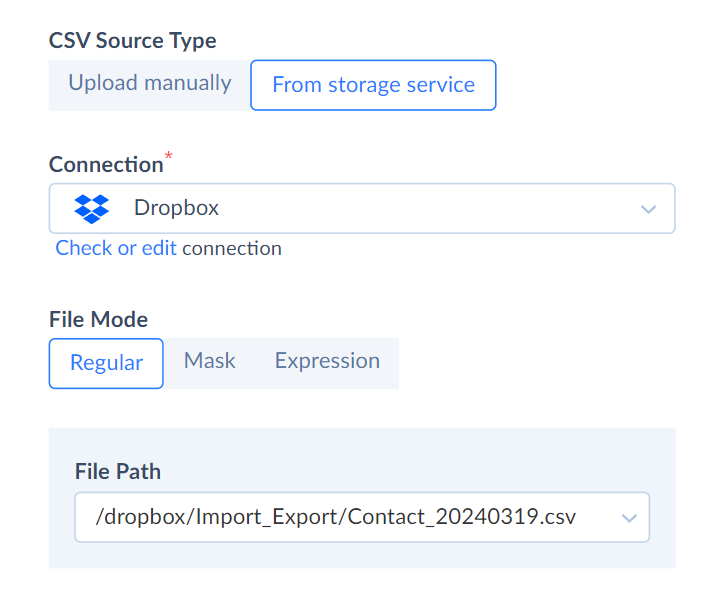
- From storage service — load the file from a file storage service when the data flow runs. Choose or create a file storage Connection, then set the File Mode.
File Mode
File Mode determines how Skyvia gets the file from the storage service.
Regular
Use this mode to specify the path to the file manually. Select the file in the File Path drop-down list.
Mask
Use this mode to add a date/time string to a file name. It allows you to avoid manually selecting files and overwriting old files each time you run a data flow. When you use a mask, Skyvia replaces it with the current date in the selected time zone and searches for the file automatically.
The following storages support this mode: Dropbox, Amazon S3, FTP, SFTP, and Azure File Storage.
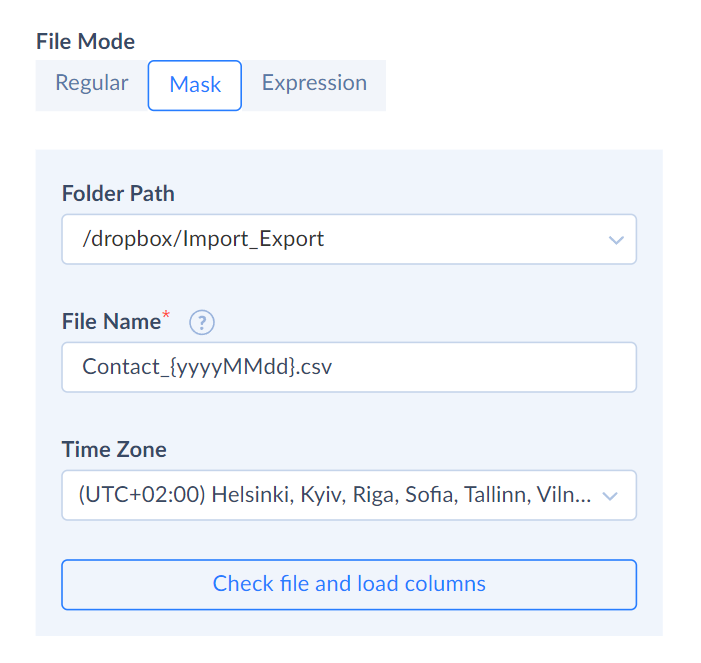
To use a mask, perform the following steps:
- Select the Folder Path that leads to the needed file.
- Specify the File Name. Add a date/time format string to the file name, enclosing it in braces {}. Use the .NET Framework custom date and time format string.
- Set the Time Zone to transform your date/time string.
- Click Check file and load columns.
For example, if you use the mask Contact_{MM_dd_yyyy}.csv on March 19, 2024, Skyvia looks for the file named Contact_03_19_2024.csv.
Expression
Use this mode to generate file names via custom expressions. It lets you use available operators, functions, and integration variables and parameters to build your file name template with the Expression Editor.
The following storages support this mode: Dropbox, Amazon S3, FTP, SFTP, and Azure File Storage.
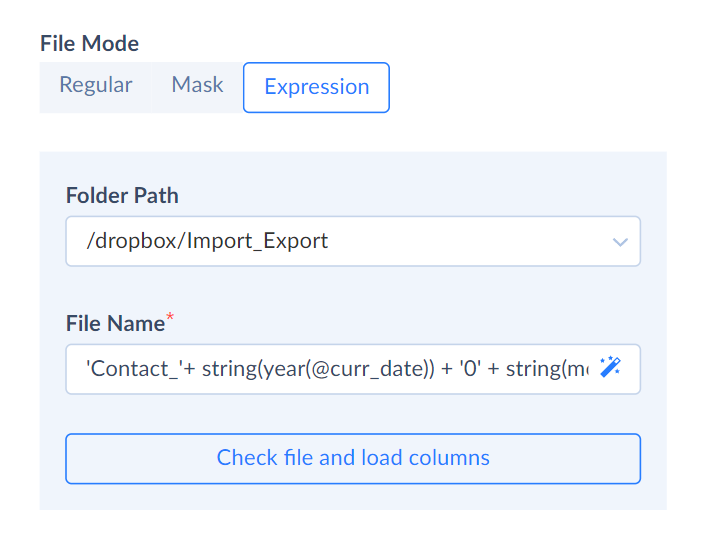
To generate your file name template, do the following:
- Select the Folder Path that leads to the needed file.
- Build your expression using our expression syntax.
- Click Check file and load columns.
CSV Options
When Source Type is CSV, you can fine-tune how Skyvia parses the text file. By default, you can set the Code Page. Click more options to also specify the CSV file options: CSV Separator, Text Qualifier, Row Delimiter, and Locale.
Use the Trim Whitespace setting to trim leading and trailing whitespaces from the data in CSV fields.
Columns
After you specify the source file, under Columns, check the number of detected columns. If this number does not correspond to the number of columns in your file, make sure that the options are specified correctly and that you selected the correct file. For example, for a CSV file, if only one column is detected, it usually means that an incorrect CSV Separator is specified. Click Reload to read the columns from the file again.
For CSV files, you can review and rename columns by clicking Edit names and editing the column names. The modified names are used in the data flow scope. Custom names are assigned to CSV file columns in the same order as in the CSV file, so the first name in the list is assigned to the first CSV file column, and so on. Customizing column names is useful when the CSV file does not include a header row with column names.
For Avro and Parquet files, you can only click View to review the column names; you cannot rename them.