Security
Control access to your Skyvia account with IP filtering and two-factor authentication.
- IP Filtering allows access only from specified IP addresses with optional exceptions for selected users.
- Two-Factor Authentication requires users to enable 2FA before accessing the account, unless they are added to exceptions.
IP Filtering
When IP Filtering is enabled, users can only access your account from specified IP addresses or if they are in the exceptions. When IP Filtering is disabled, Skyvia allowes access to your account from any IP address.
Prerequisites
Only users with Admin rights can configure the security settings.
How to Enable IP Filtering
To define which IP addresses can access your Skyvia account, do the following:
-
Go to app.skyvia.com and click the user icon on the top right.
-
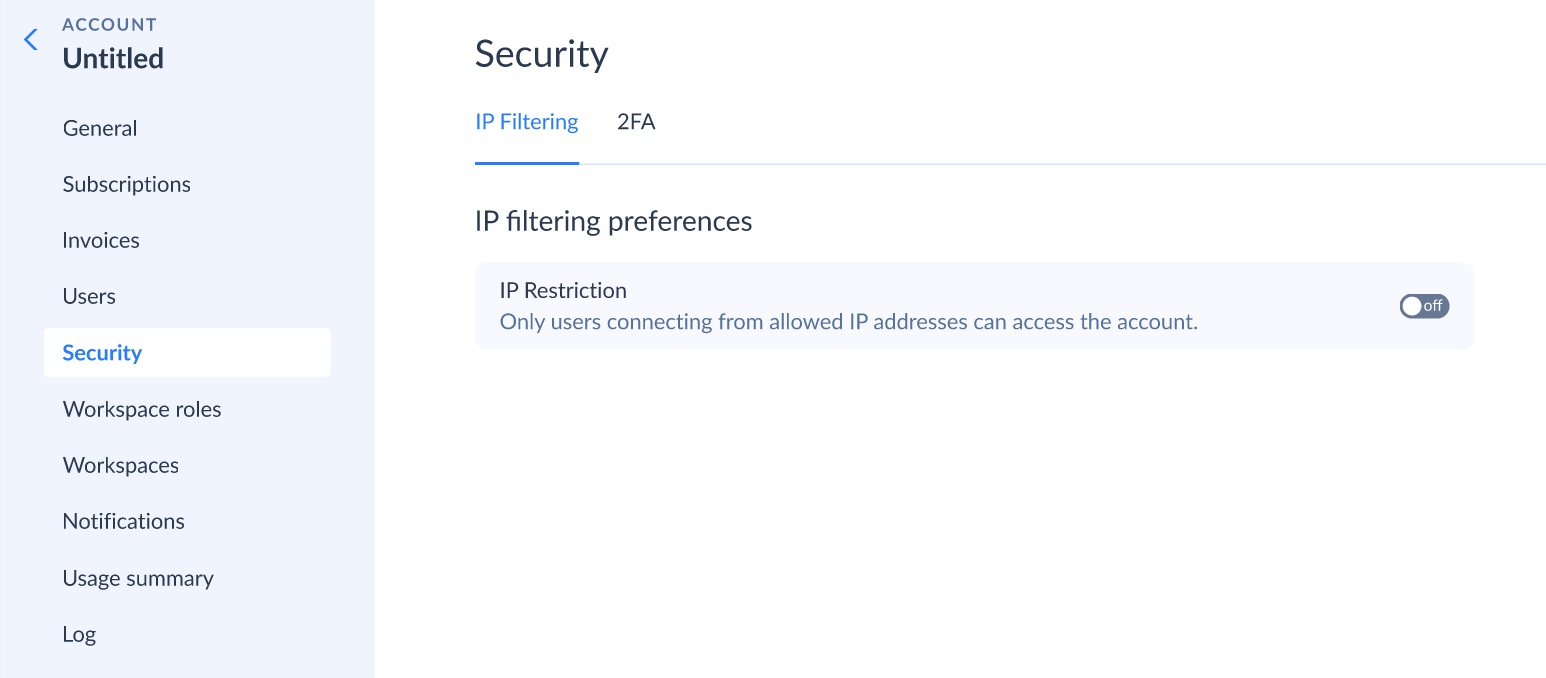
Click Security on the left.
-
Switch the toggle to enable the IP Filtering.
-
Confirm the IP restriction and choose whether to add your current user to the exceptions.
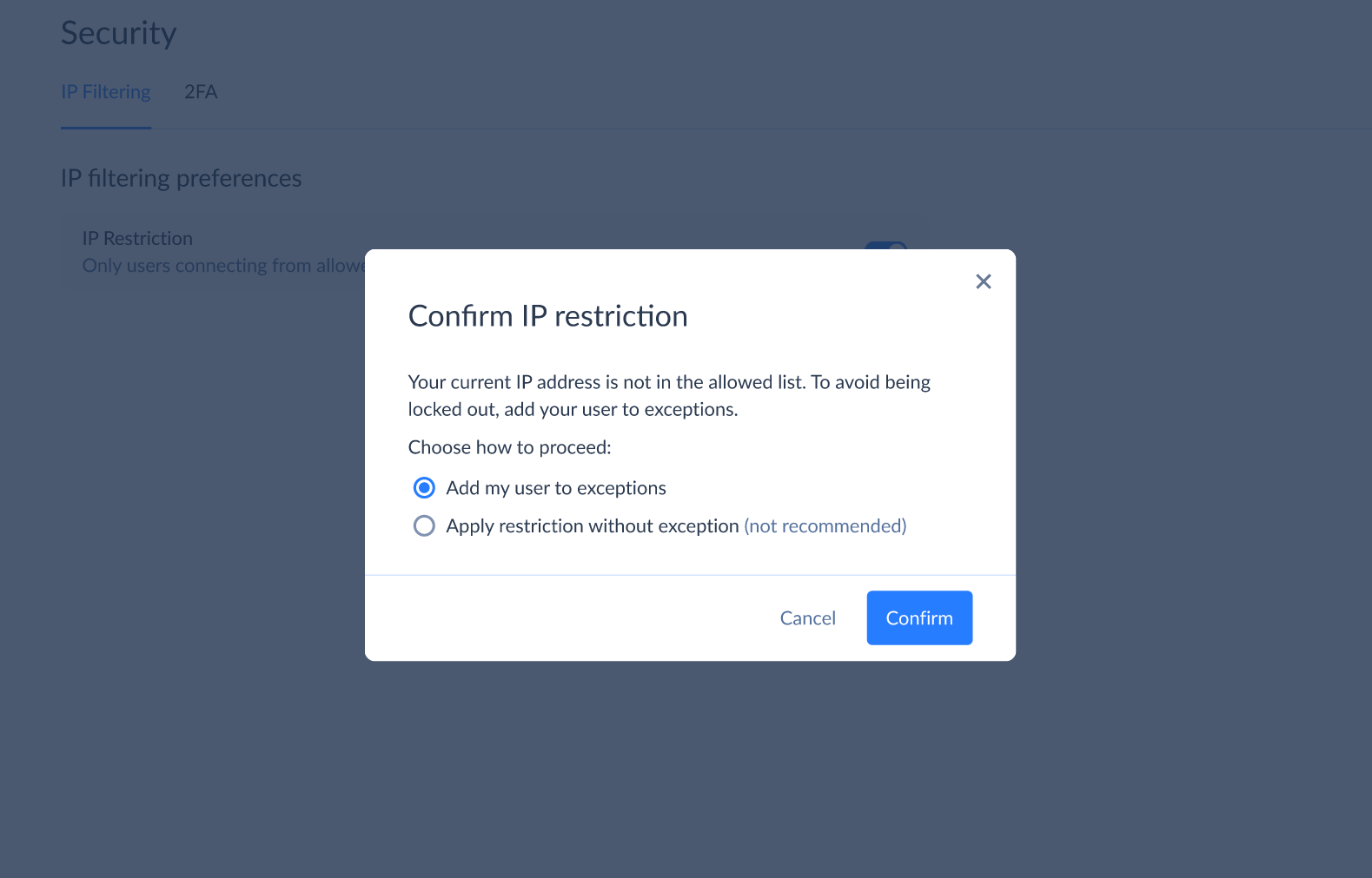
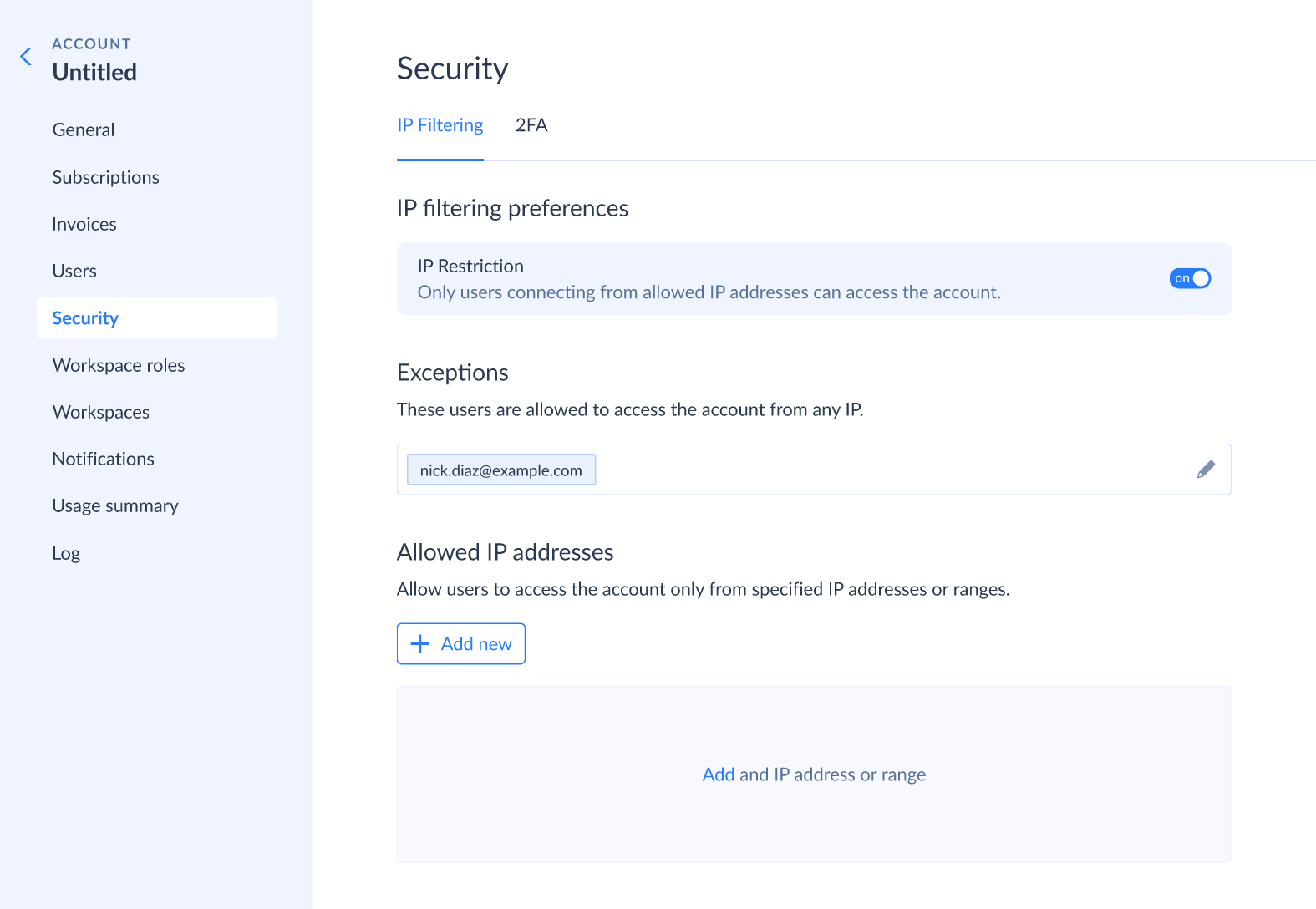
If you add your user to the exceptions, you can access your current account from any IP address.
-
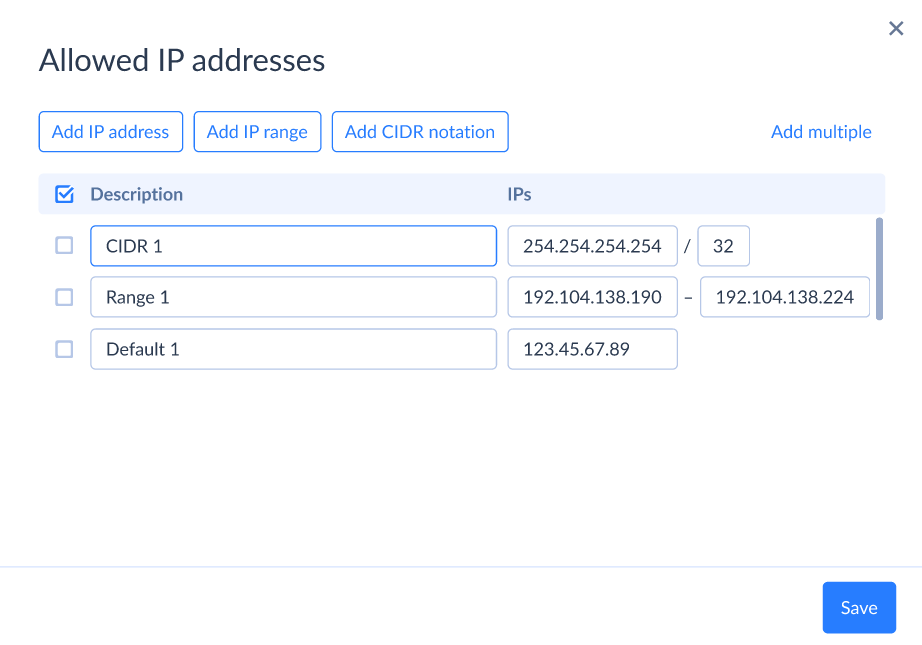
Click +Add new and specify one or more IP addresses that are allowed. You can specify a single IP address, an IP range, or CIDR notation to allow an IP address and its associated network mask.
2FA
Once you enable two-factor authentication for your account, only users who have enabled 2FA in their profiles can access your account.
To require 2FA from other users, you must enable it for your profile. See more details in Two-factor Authentication topic.
How to Enable 2FA Enforcement
To require 2FA from users of your account, do the following:
- Go to app.skyvia.com and click the user icon on the top right.
- Click Security on the left and switch to the 2FA tab.
- Switch the 2FA enforcement toggle.
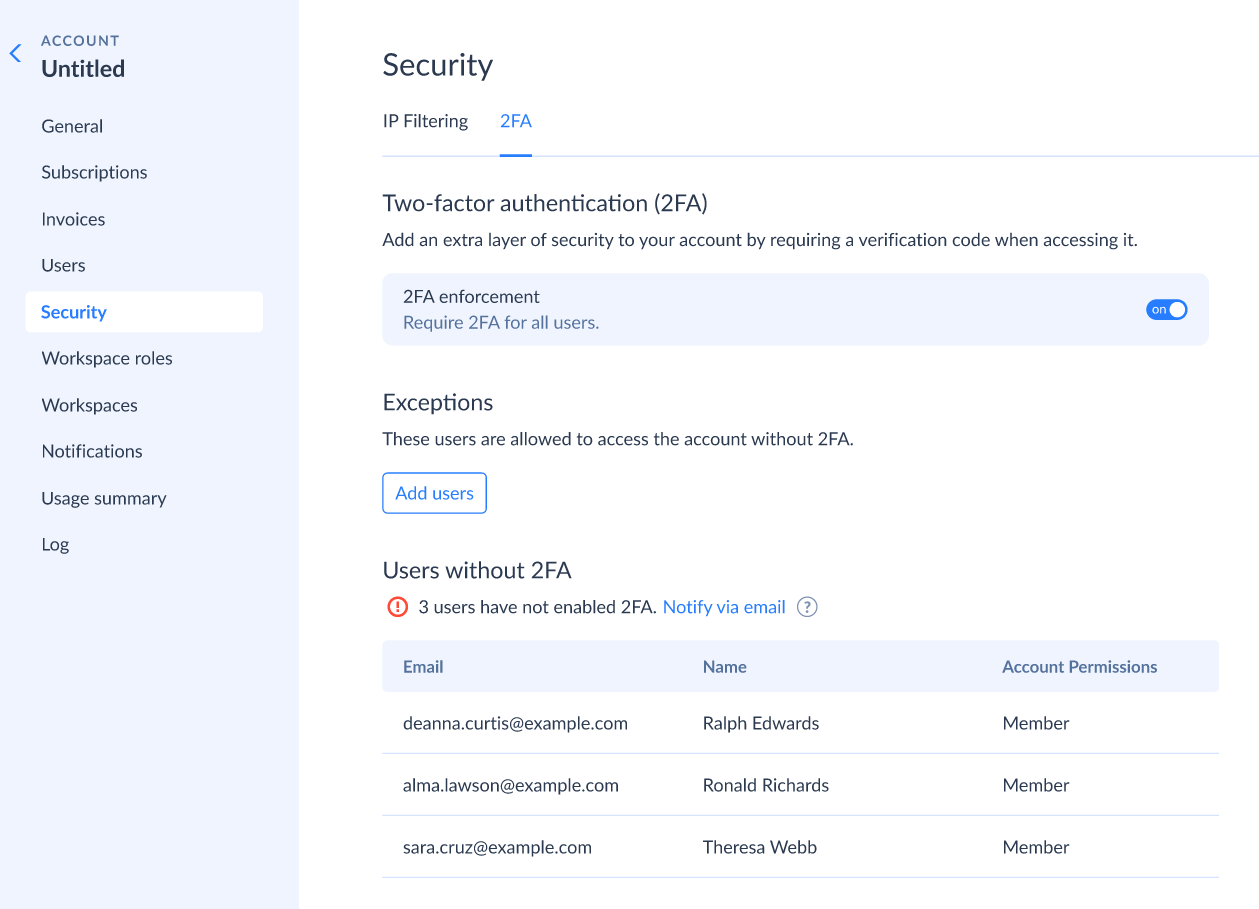
Users who have not enabled 2FA will be displayed below. Click Notify via email to remind them to enable the 2FA.
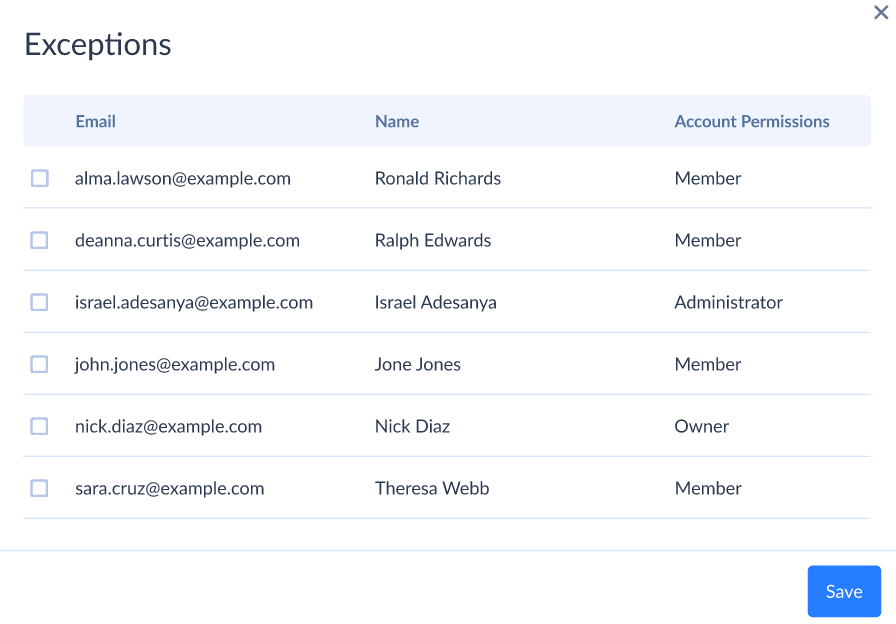
Exceptions
You can allow particular users to access your Skyvia account without 2FA. For that, add their emails to the Exceptions.