Replays
Replays lets you retry failed or skipped records from an Import integration without running the entire import again. After fixing the issue that caused the records to fail, use Replay to process them again.
Replay processes a snapshot, which is a saved copy of source data from the original run. It does not extract those records from the source again. You can therefore retry saved records even if the original source file has been replaced or deleted.
Enabling Replays
Enable Replays before starting your import so Skyvia can save the source data for retrying failed or skipped records later.
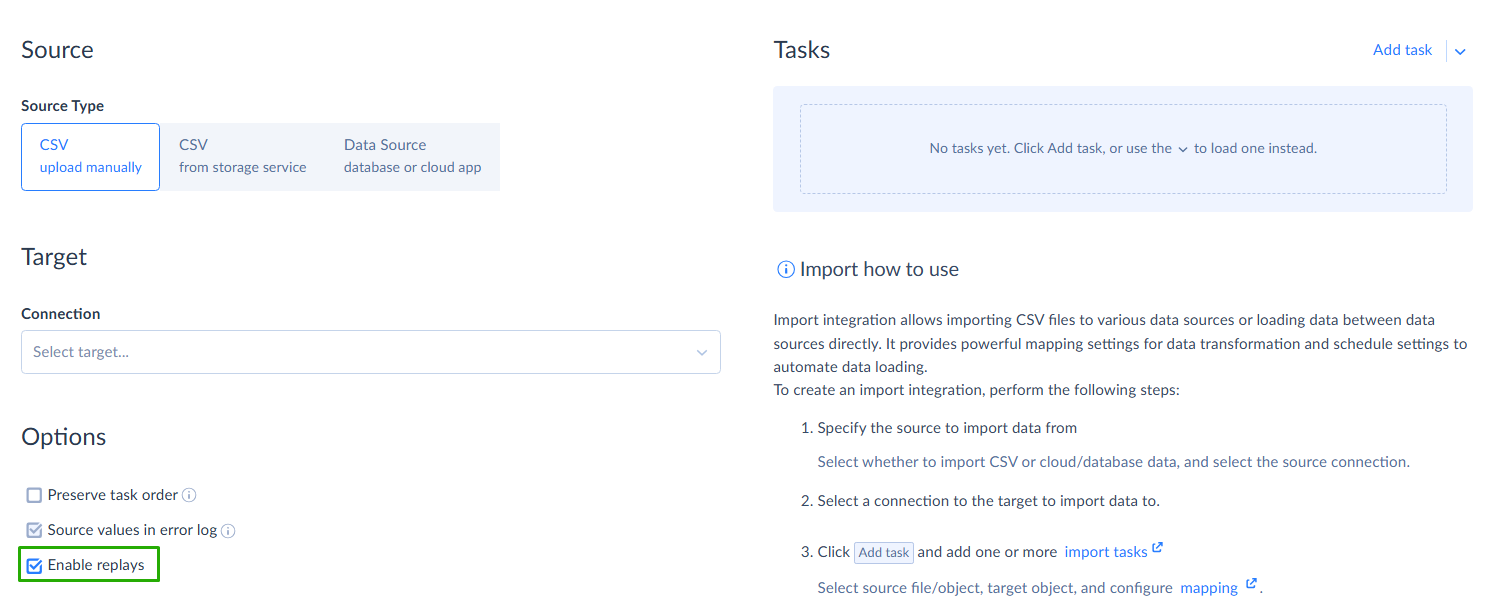
- Open your Import integration and go to Model > Options.
- Select Enable Replays.
- Click Save.
Enabling Replays does not create snapshots for earlier runs.
Finding Records to Replay
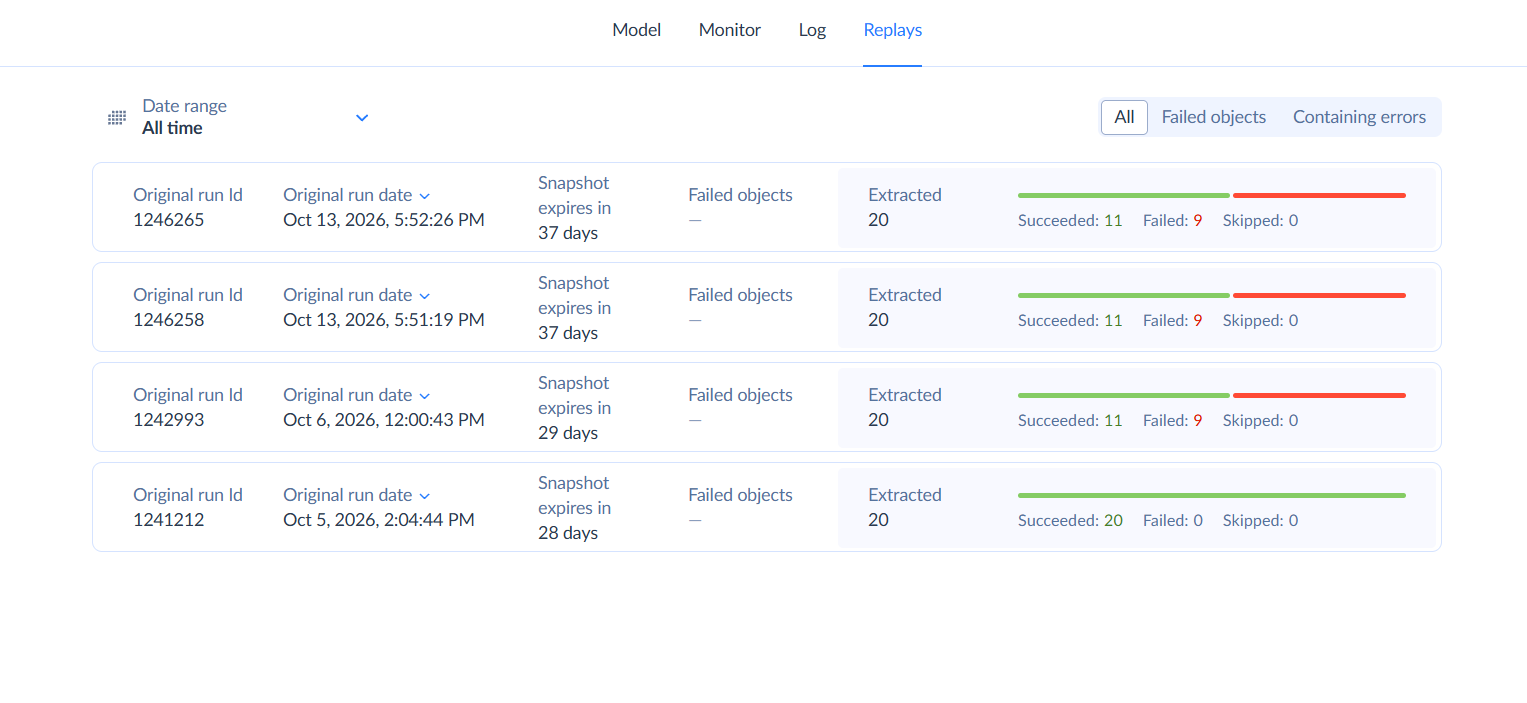
Open the Replays tab and select the original run. Use the date range to find the run you need.
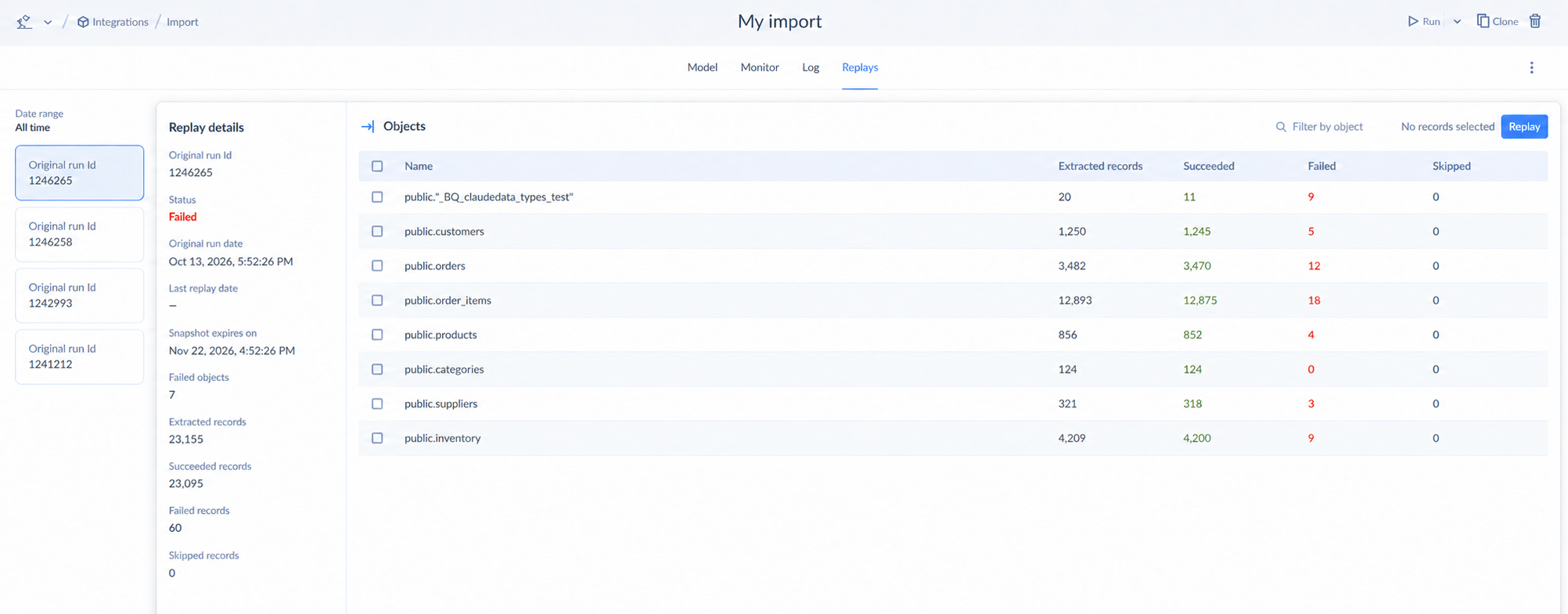
You can also open a failed run from Monitor or Log and select Go to replay in its history details when that link is available.
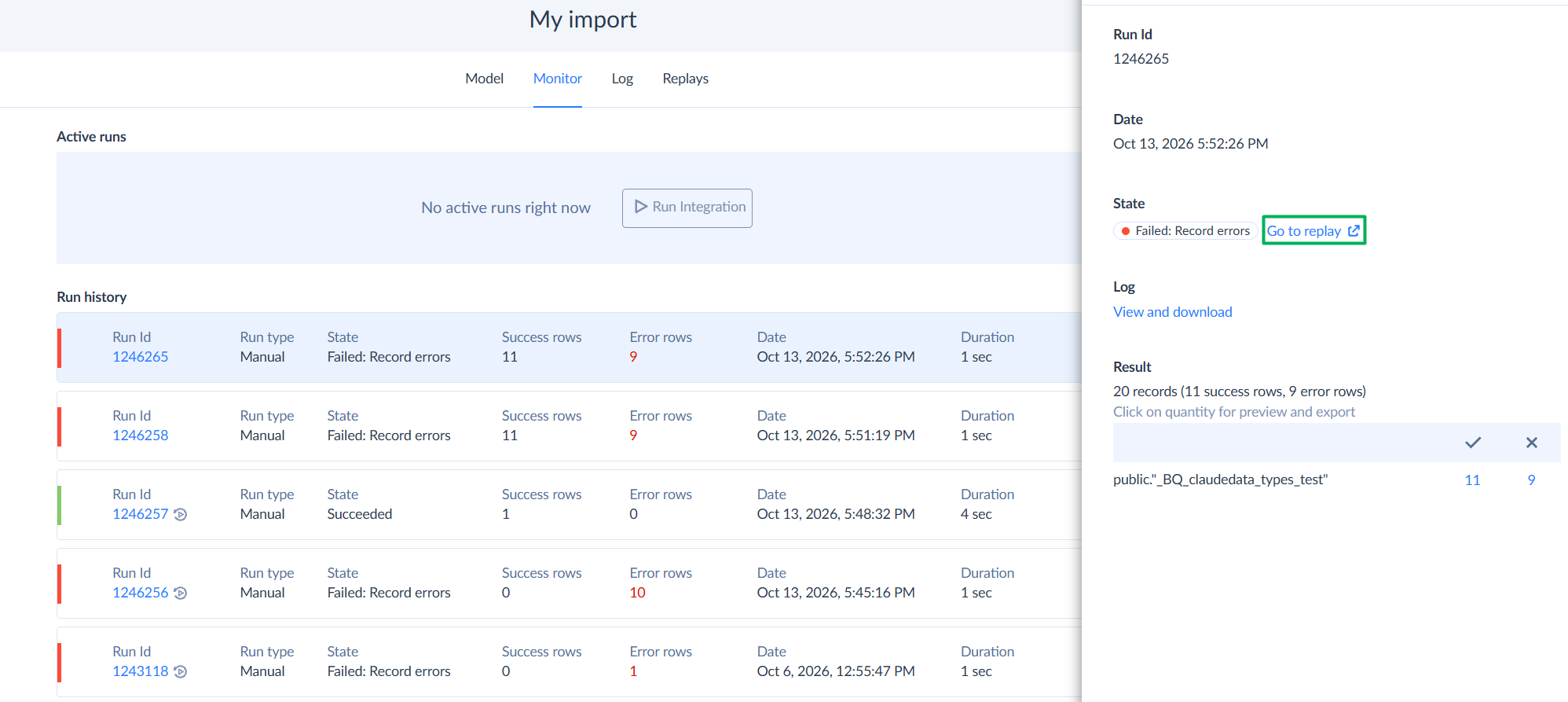
The run details show the original run ID and date, the last replay date, the snapshot expiration date, and record counts. The Objects table shows the counts for each object in the snapshot.
| Count | Meaning |
|---|---|
| Extracted | Source records saved in the snapshot. |
| Succeeded | Saved records that have been processed successfully. |
| Failed | Saved records whose processing failed. |
| Skipped | Saved records that have not been processed. |
These counts show the current state of the snapshot, including the results of subsequent replays.
Open an object to inspect its records. The default filter is Failed and skipped. You can switch to Failed, Skipped, or All. Use All to view successful records as well.
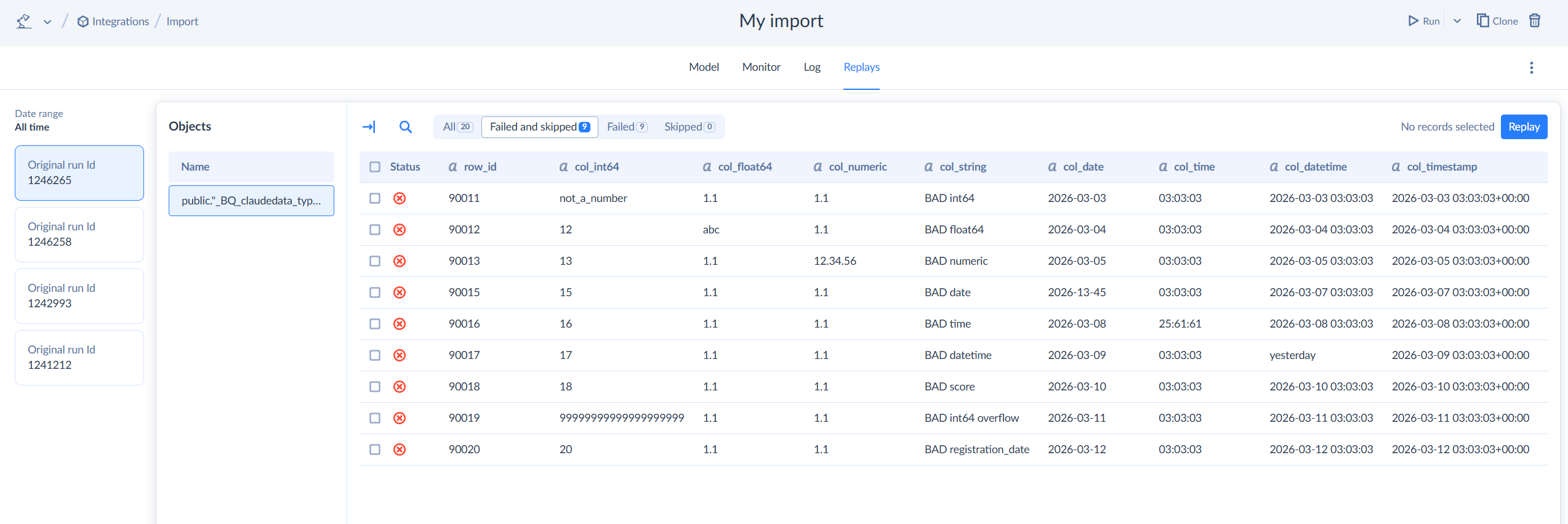
Click the details icon next to a record’s status to view its saved values and error message. Resolve the cause before replaying the record. For example, correct an expression in the integration's mapping or resolve a validation problem in the target.
Replay uses the saved source values. Editing a source record or replacing a source file does not update the snapshot. To process changed source data, use a new regular import run and consider how it will affect records already in the target.
Replaying Records
You can replay individual records or all records with a particular status from one snapshot.
- Open the original run on the Replays tab.
- To replay specific records, open an object and select the checkboxes next to the failed or skipped records you want to retry. You can select records across the snapshot's objects.

- Click Replay.
- In the dialog, choose the scope:
- Selected ({count}) processes the records you selected manually.
- All processes records with the chosen status across all objects in this snapshot. Choose Failed and skipped, Failed, or Skipped. This scope does not depend on the records you selected manually.
- Check the number of records and confirm the replay.
If you changed the mapping to resolve an error, save the integration before replaying the affected records. Replay applies the current mapping to the saved source values. For a mapping correction, you can first replay one affected record to check the result, then replay the remaining records.
Replaying an Insert operation may create duplicates. A record reported as failed or skipped may already exist in the target, for example after a partially completed write. Check the target for those records before replaying them. Replay does not remove existing duplicates.
Reviewing Replay Results
After the replay finishes, the results show Succeeded, Failed, and Skipped counts for each object processed in that replay.
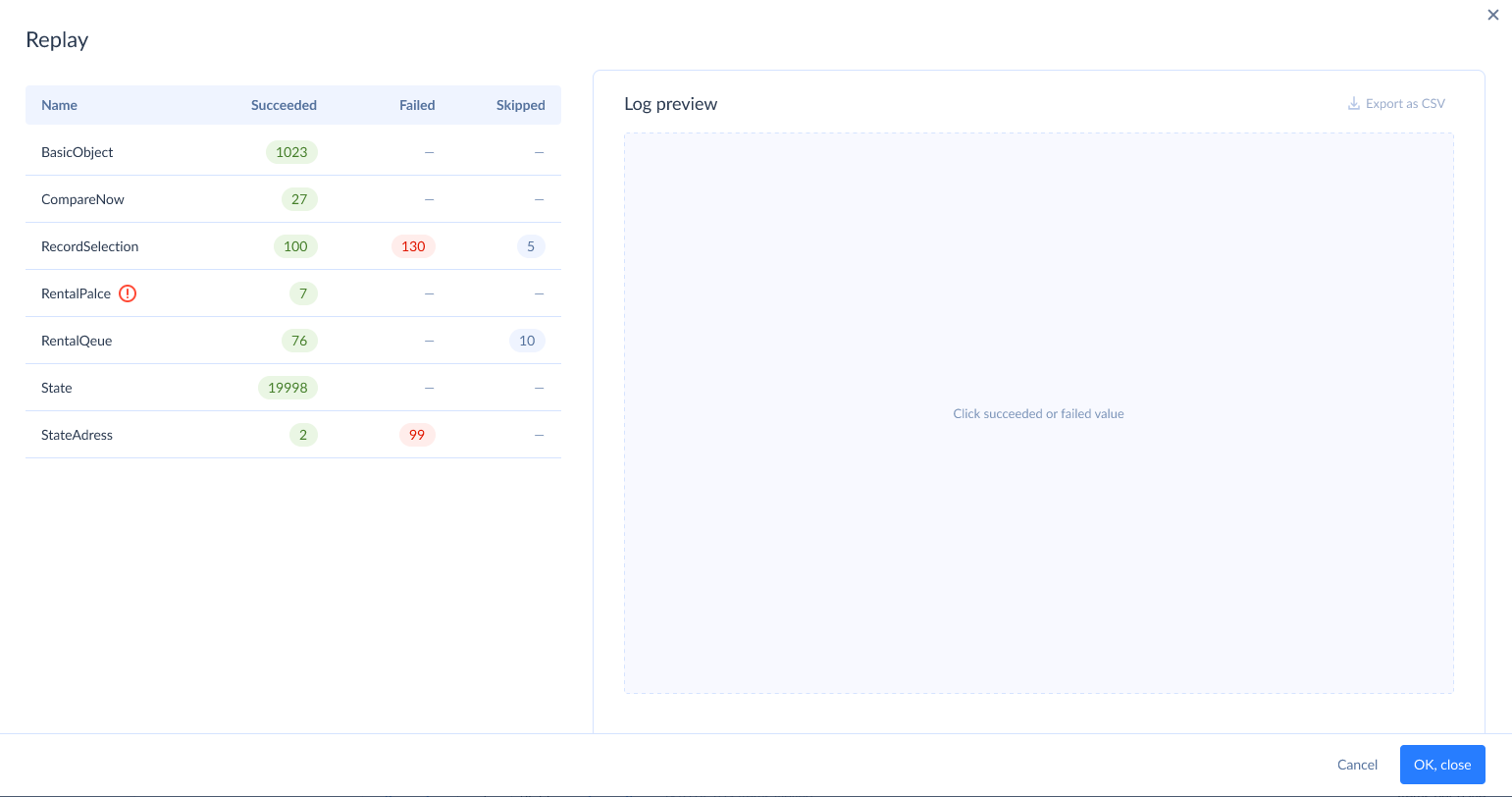
Select a number under Succeeded or Failed to view the corresponding records. Use Export as CSV to download the displayed log.
The results describe this replay only. The original run's snapshot shows the updated, cumulative state across the original run and its replays.
For example, suppose a snapshot contains 100 records: 60 succeeded, 30 failed, and 10 were skipped. You replay the 30 failed records, and 20 succeed while 10 fail again:
| View | Succeeded | Failed | Skipped |
|---|---|---|---|
| Results of this replay | 20 | 10 | 0 |
| Current snapshot totals | 80 | 10 | 10 |
Each replay is a separate run in Monitor and Log, linked to the original run. If records still fail, inspect their errors, resolve the cause, and replay the affected records again while the snapshot is available.
Snapshot Expiration
Snapshots are retained for a limited period that depends on your plan. The retention period starts with the original run. Check the time remaining in the Replays list and the expiration date in the run details.
Replay records before the snapshot expires. After expiration, the snapshot is deleted and its saved records are no longer available for replay. The original run appears as Expired on the Replays tab.