Salesforce Data 360
Salesforce Data 360 (formerly Data Cloud) is a Salesforce data platform that collects customer data from different sources into a unified data lake, harmonizes it according to a common data model, and makes it available for analytics, segmentation, and activation.
Data integration: Skyvia supports importing data to and from Salesforce Data 360, exporting Salesforce Data 360 data to CSV files, replicating Salesforce Data 360 data to relational databases, and replicating other cloud apps' and databases' data to Salesforce Data 360.
Backup: Skyvia Backup does not support Salesforce Data 360.
Query: Skyvia Query supports Salesforce Data 360.
Establishing Connection
Skyvia connects to Salesforce Data 360 via OAuth 2.0 using your own Salesforce External Client App. To create a connection to Salesforce Data 360, you need the Consumer Key and Consumer Secret of this app.
Getting Credentials
User Permissions
The Salesforce user you sign in with must have access to Salesforce Data 360 and its data spaces:
-
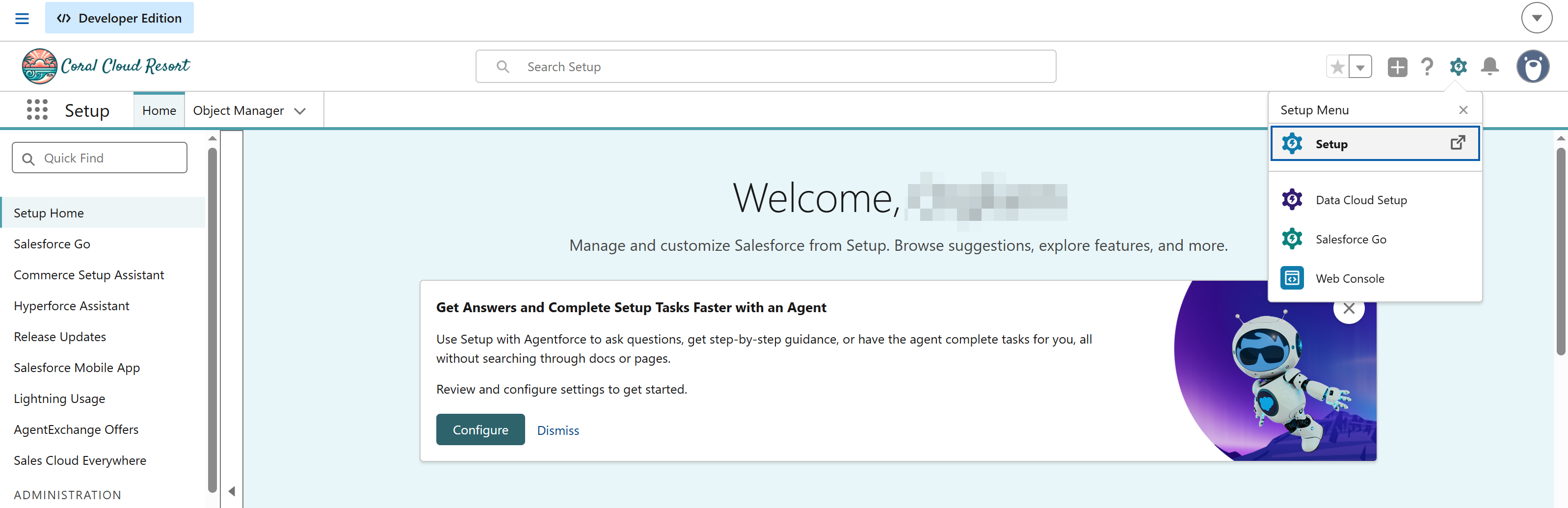
In Salesforce, click the gear icon and select Setup.
-
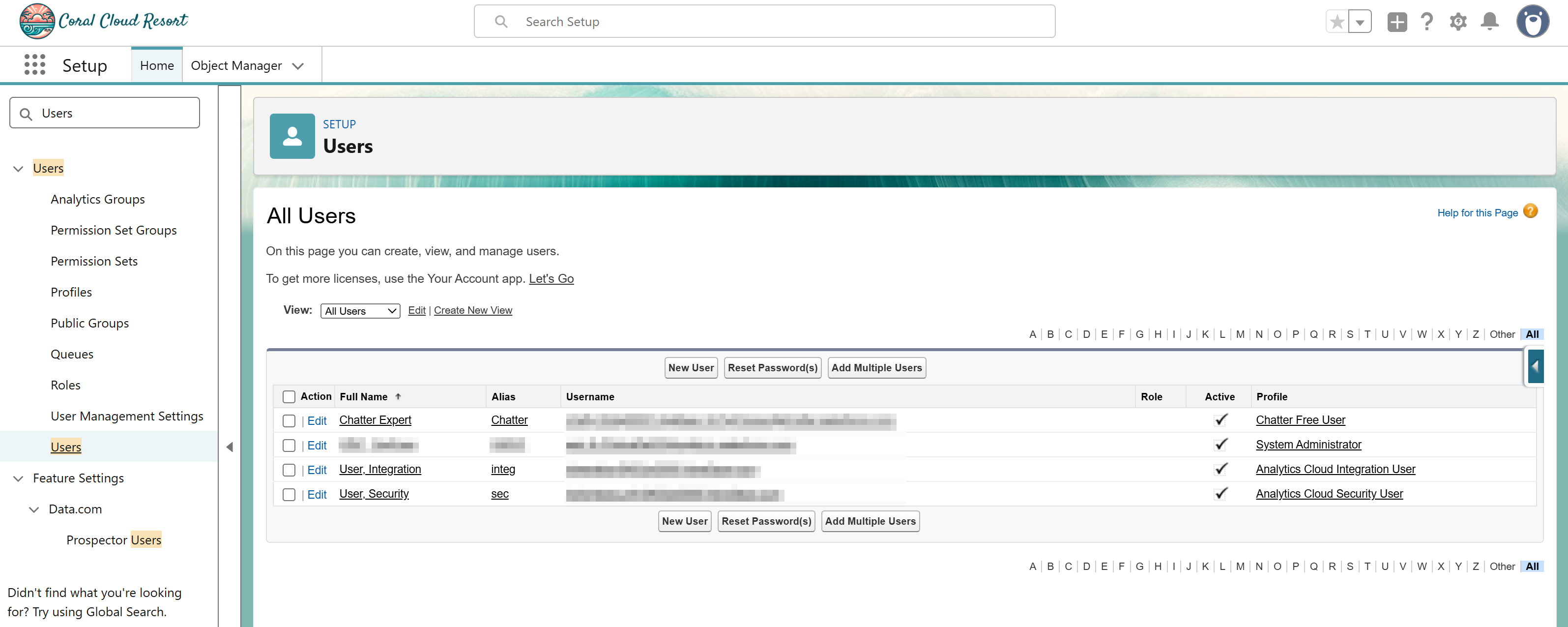
In the Quick Find box, enter Users and open the user you're connecting with.
-
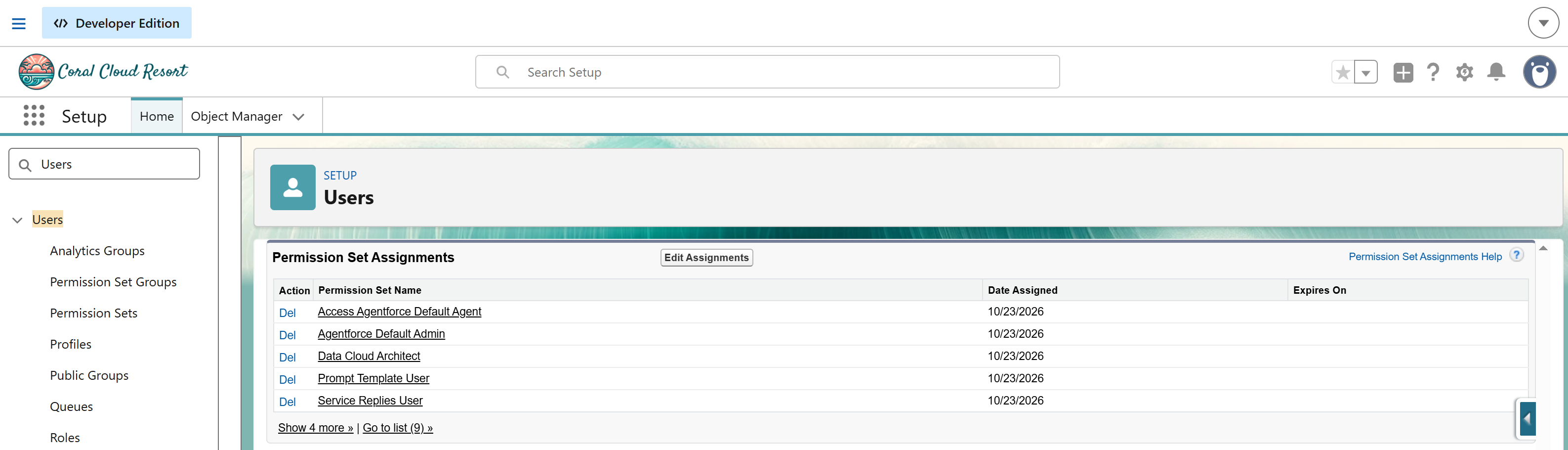
Click Permission Set Assignments
-
If the Data Cloud Architect permission set is not assigned, click Edit Assignments and assign it to the user.
-
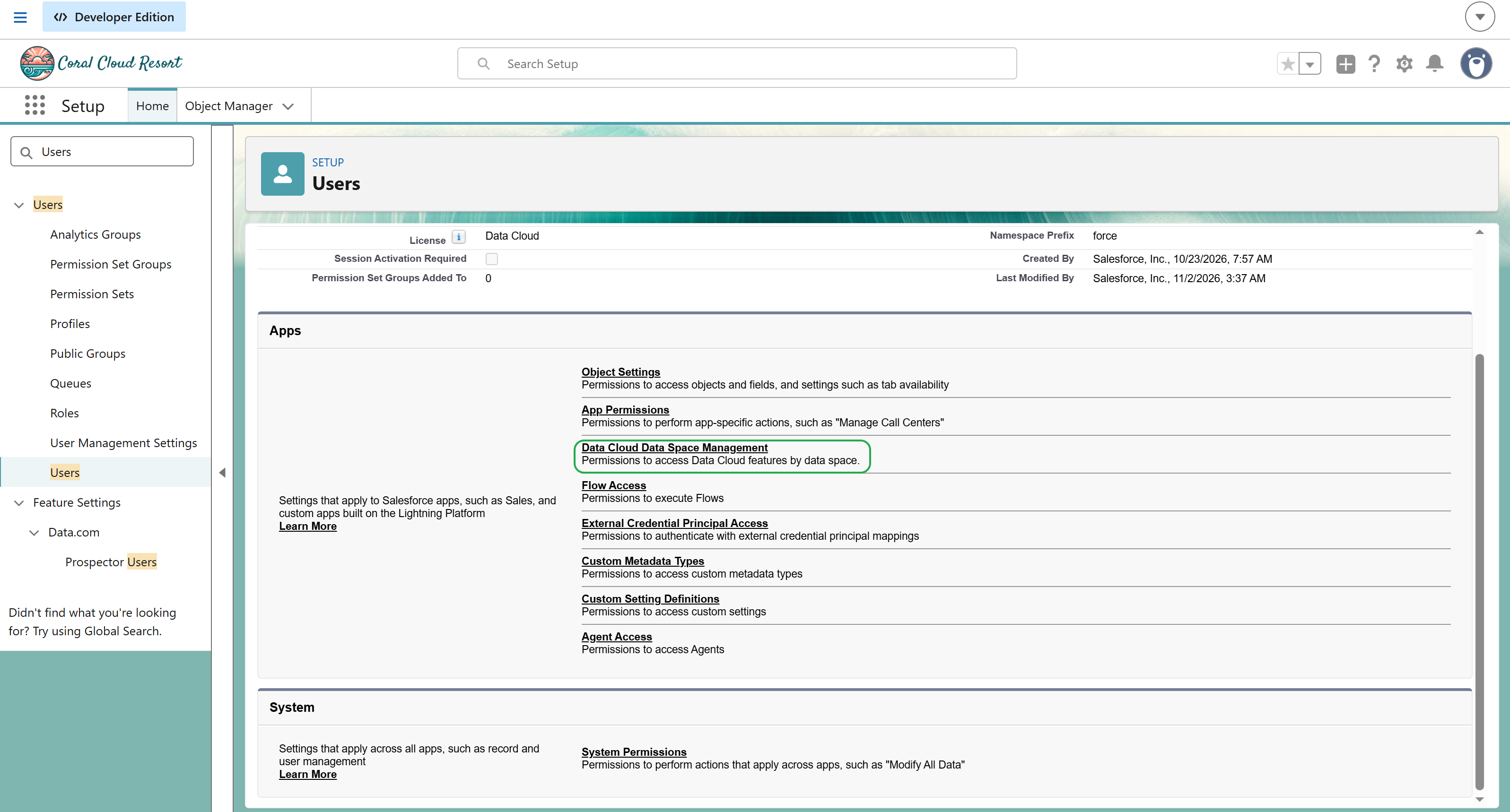
In Permission Set Assignments, click the assigned Data Cloud Architect permission set.
-
Click Data Cloud Data Space Management.
-
Add the data spaces you want to access, for example, default.
Permission changes may take about ten minutes to apply.
For more information, see Data 360 Standard Permission Sets.
Consumer Key and Consumer Secret
To create an External Client App and get its credentials, perform the following steps:
-
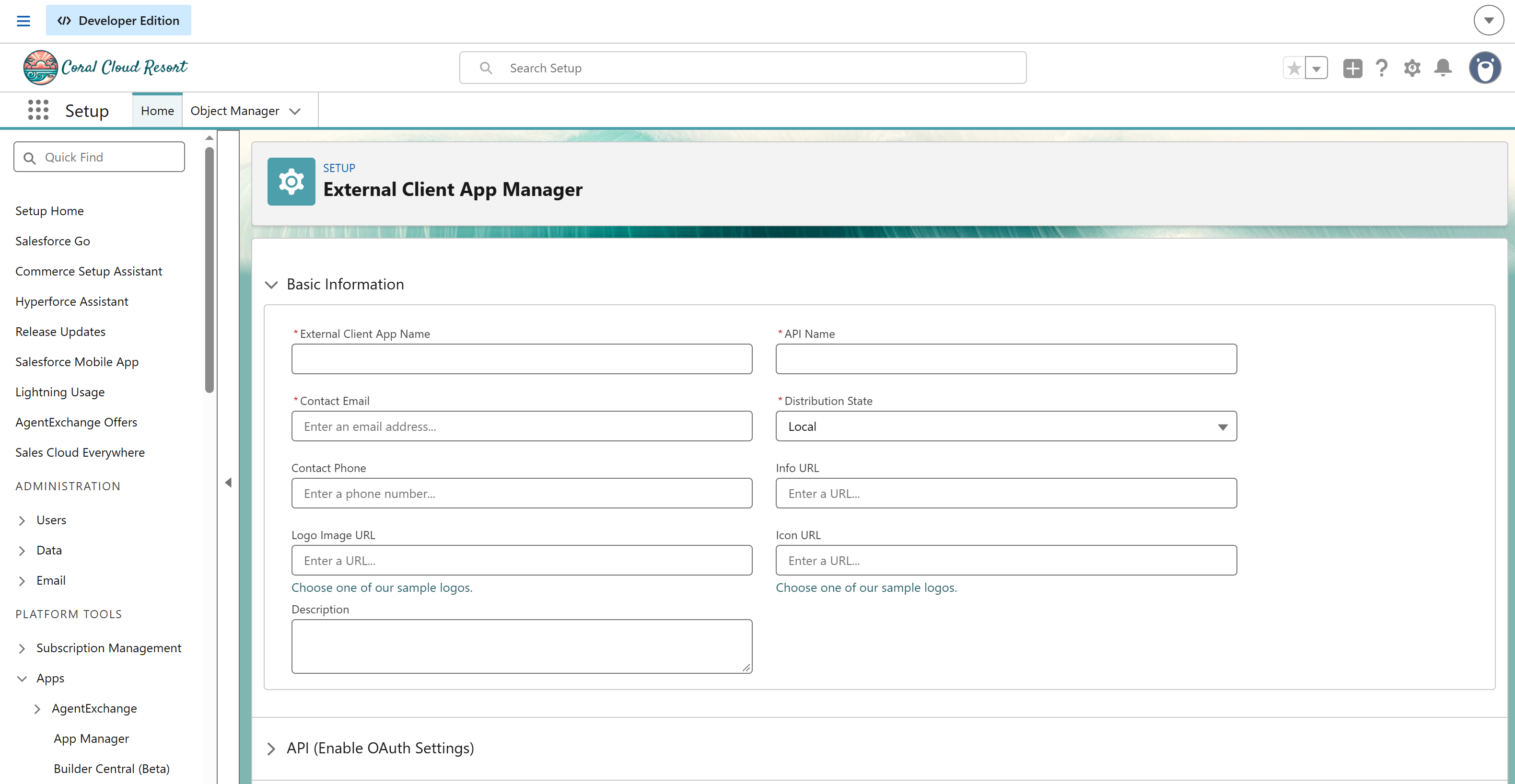
In Salesforce Setup, navigate to Apps > External Client Apps > External Client App Manager and click New External Client App.
-
Specify the required settings:
- External Client App Name, for example, Skyvia.
- Contact Email - your email
- API Name - for example, SkyviaAPI
- Distribution State set it to Local.
-
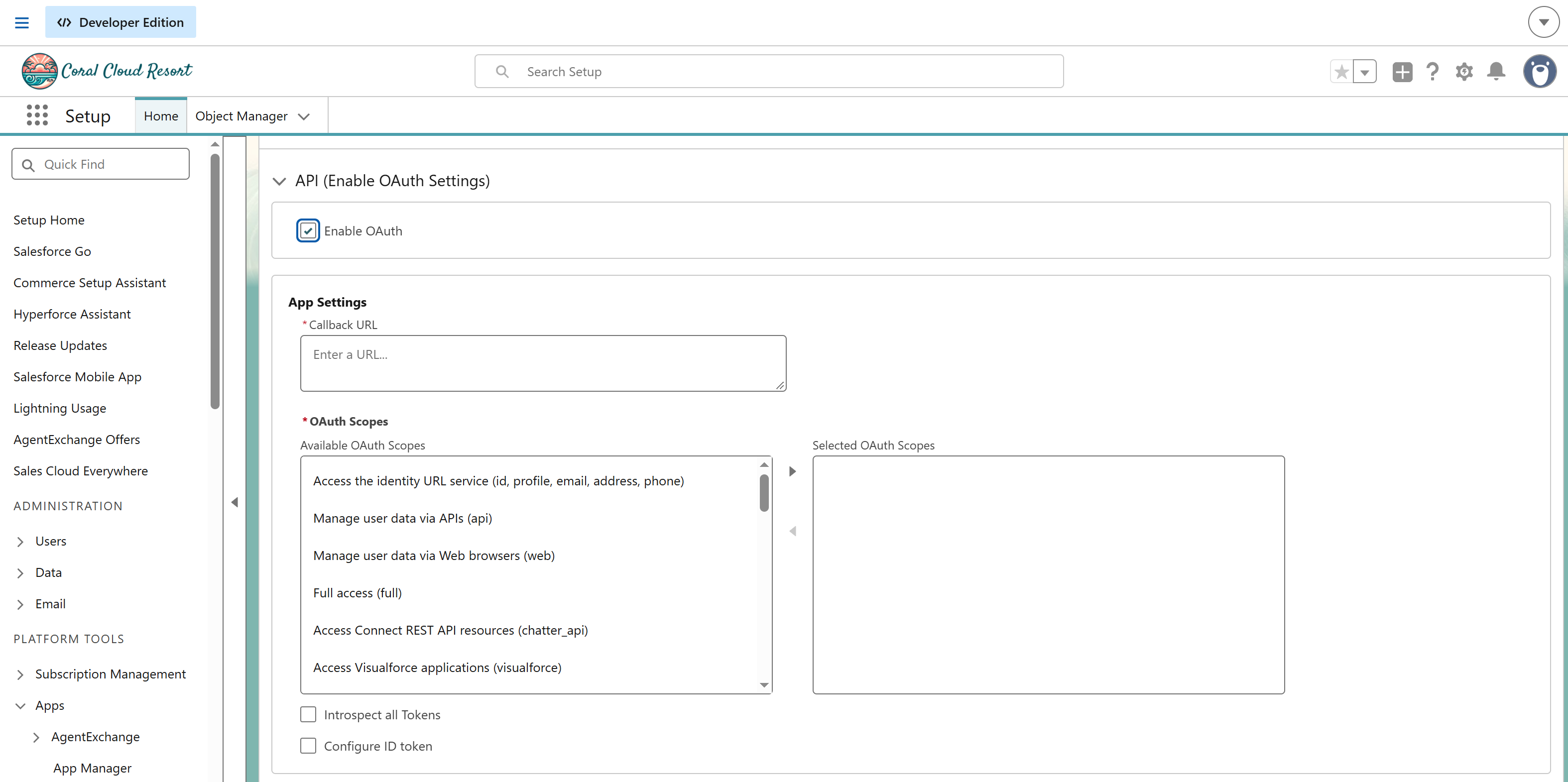
Click API (Enable OAuth Settings) and select Enable OAuth.
-
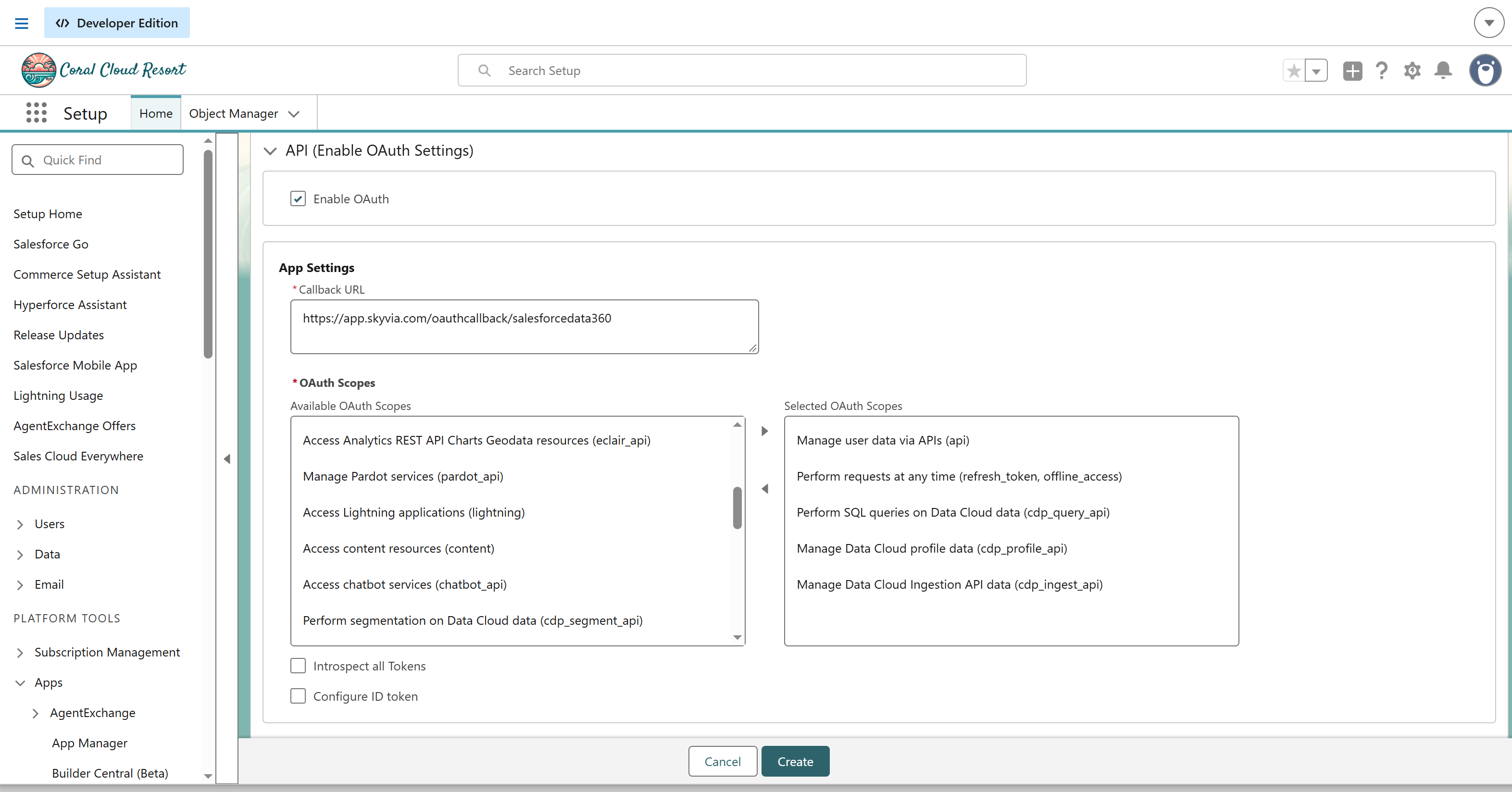
Specify the Callback URL —
https://app.skyvia.com/oauthcallback/salesforcedata360 -
In OAuth Scopes, select the following scopes:
- Manage user data via APIs (api),
- Perform requests at any time (refresh_token, offline_access),
- Perform SQL queries on Data Cloud data (cdp_query_api),
- Manage Data Cloud Ingestion API data (cdp_ingest_api),
- Manage Data Cloud profile data (cdp_profile_api)
-
Click Create.
-
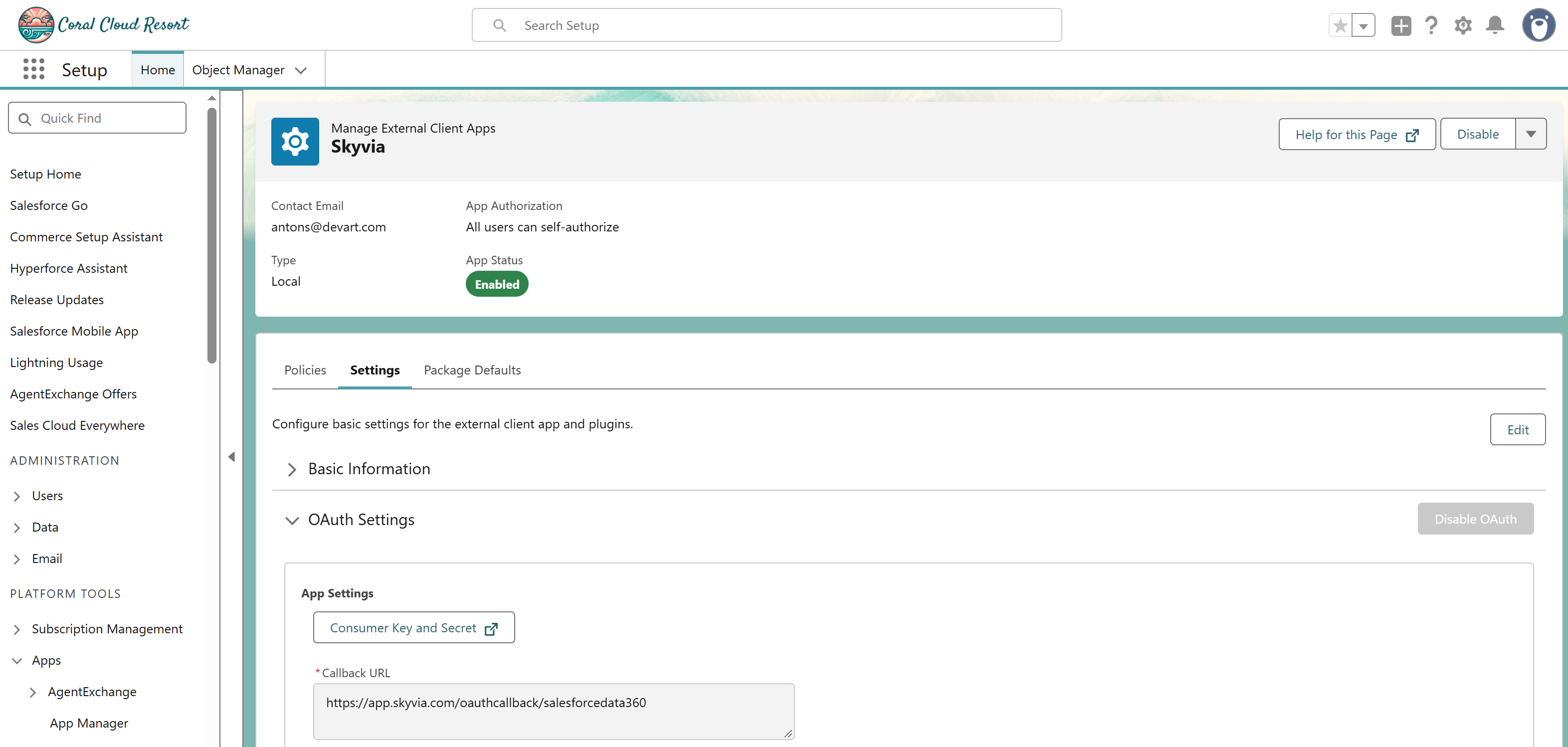
In the created app, go to Settings.
-
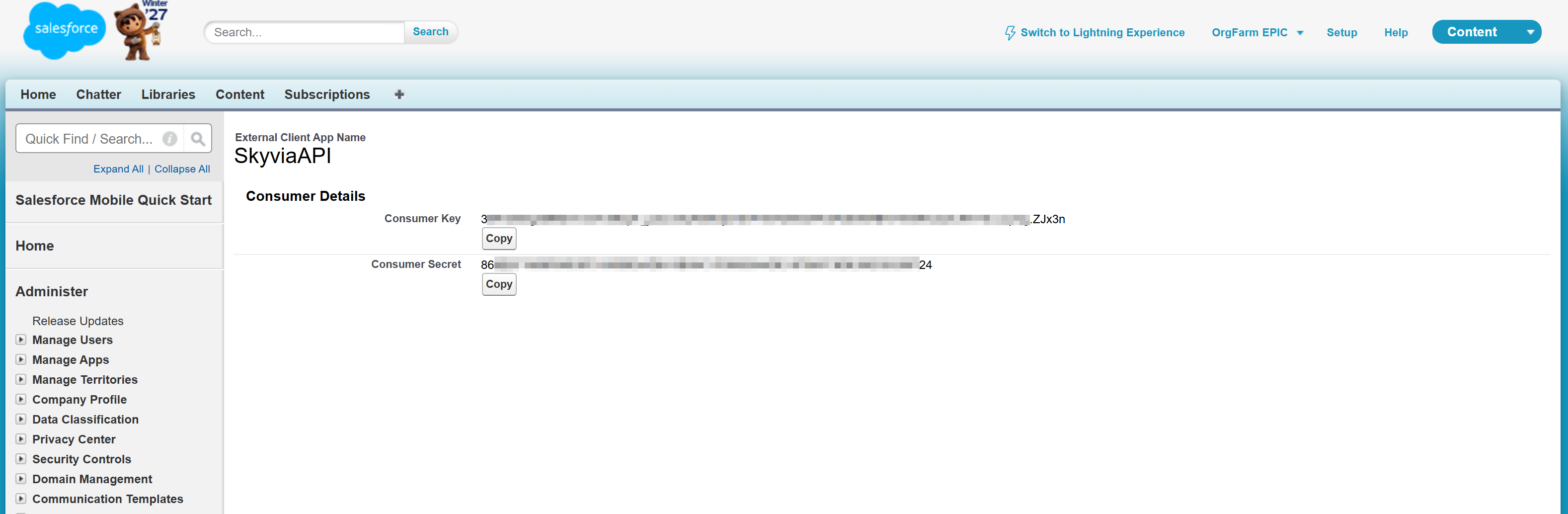
In OAuth Settings click Consumer Key and Secret.
-
Copy the application Consumer Key and Consumer Secret.
Ingestion API Connector
Skyvia loads data to Salesforce Data 360 via the Ingestion API. If you want to write data to Salesforce Data 360, create an Ingestion API connector:
-
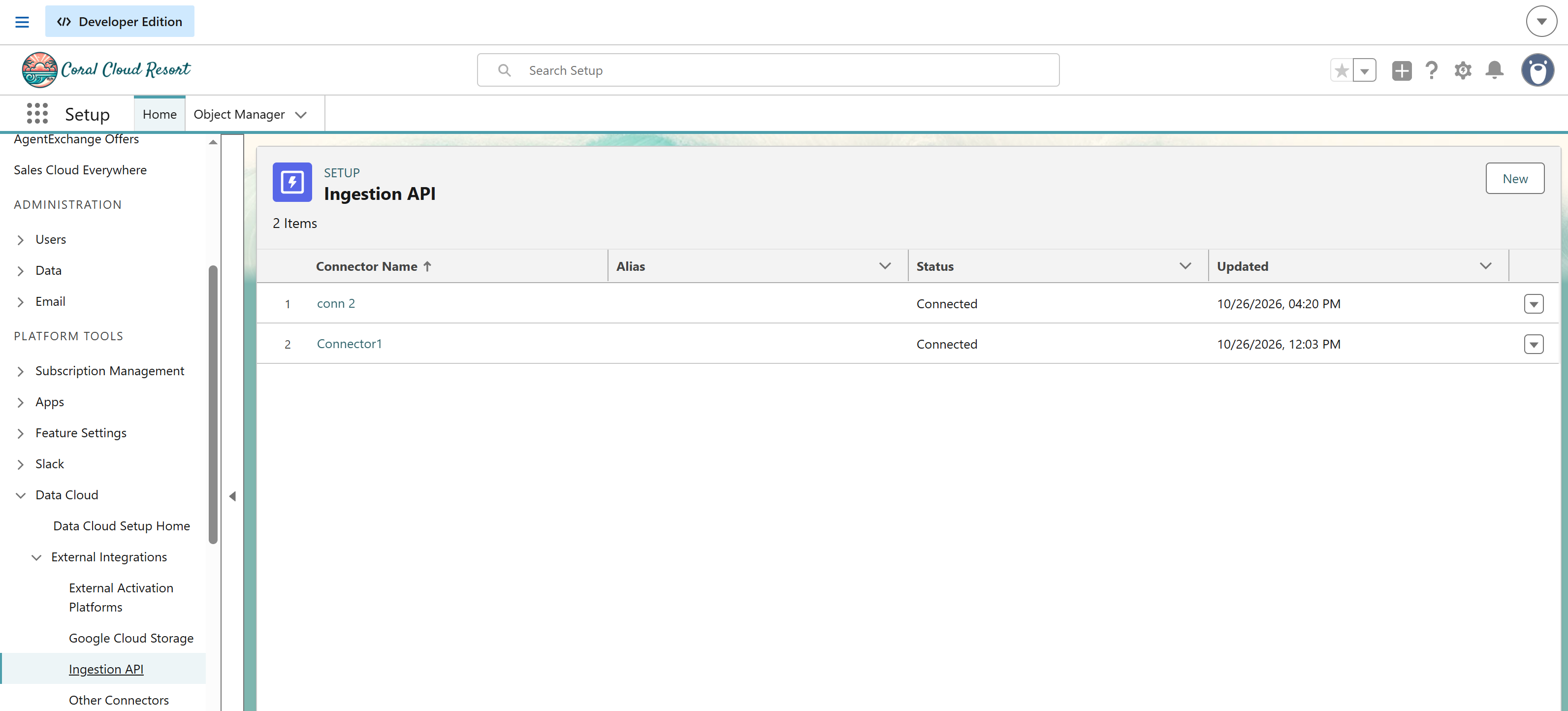
In Salesforce Setup, navigate to Data Cloud > External Integrations > Ingestion API and click New.
-
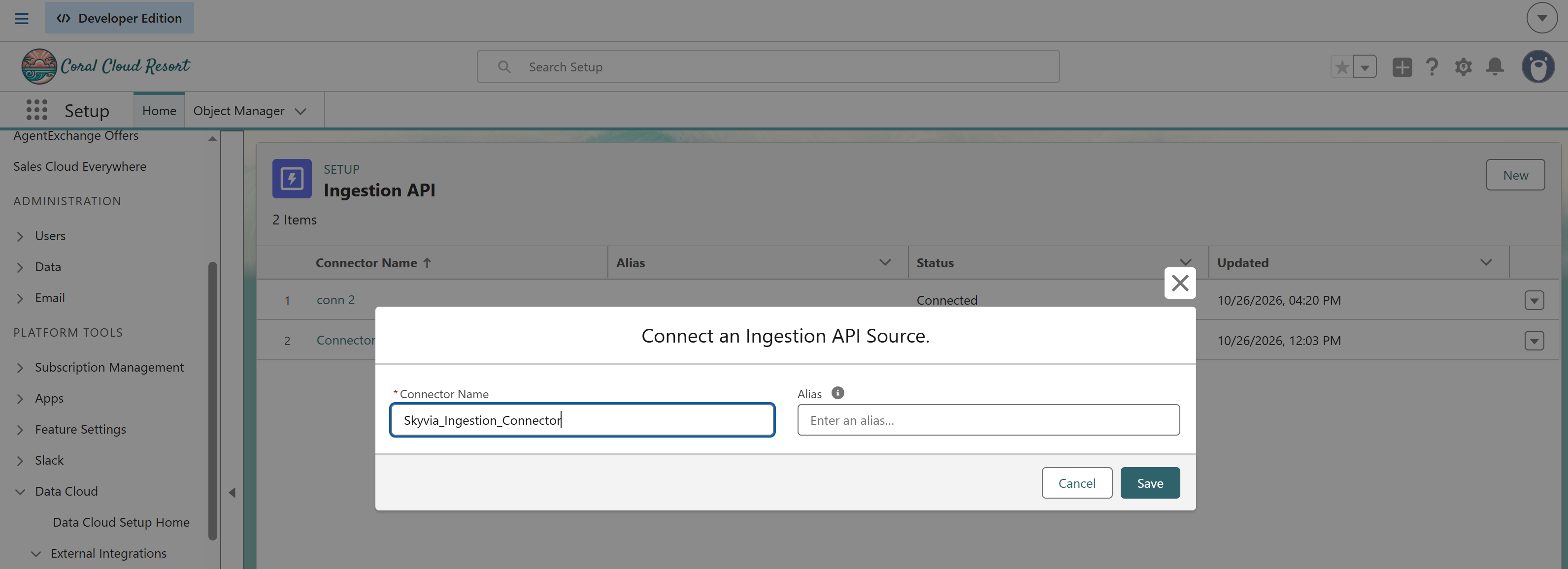
Enter the connector name and click Save.
After this, you can upload the schema file and create the corresponding data stream to define objects that you will be able to load data too. See Ingestion API Schema File Requirements for documentation about schema and Create a Data Stream for the information on creating a data stream.
This step is not required for Skyvia replication and Create and Load action. They can create the objects in Salesforce Data 360 automatically and perform these actions themselves. In this case creating the Ingestion API connector is enough.
Creating Connection
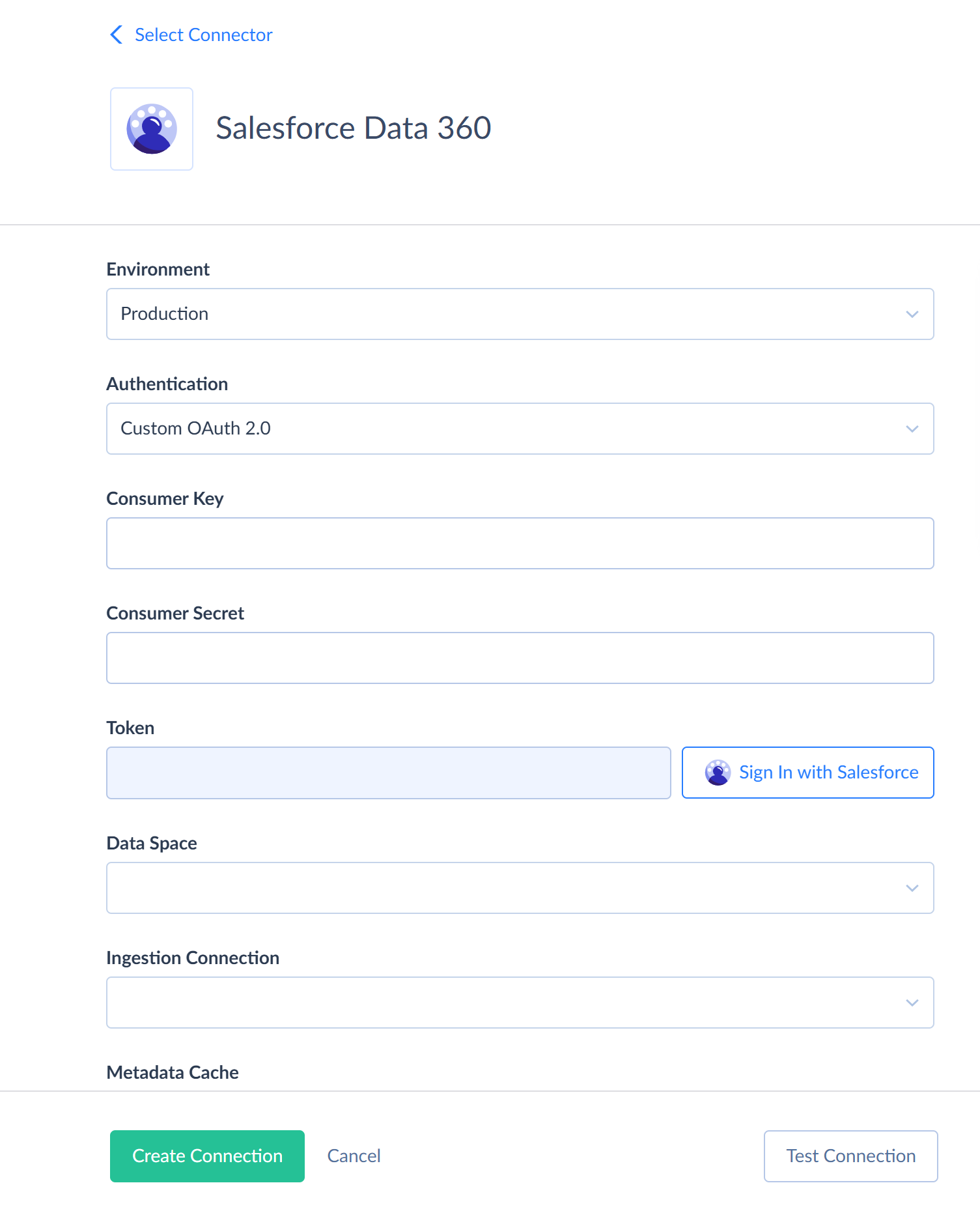
To create a connection to Salesforce Data 360, perform the following steps:
- Select Environment type. If you select Custom, enter your custom domain URL into the Login URL field.
- Enter the Consumer Key and Consumer Secret of your External Client App.
- Click Sign In next to Token and sign in to Salesforce.
- Optionally, select the Data Space to connect to. By default, Skyvia uses the default data space.
- Optionally, select the Ingestion Connection. It is required for writing data to Salesforce Data 360.
Additional Connection Parameters
Metadata Cache
You can specify the period after which Metadata Cache expires. Salesforce Data 360 metadata is dynamic and Skyvia gets it using several API requests, so we recommend keeping the cache enabled. Skyvia resets the cache automatically when you change the Data Space or Ingestion Connection.
Connector Specifics
Object Peculiarities
Skyvia displays Salesforce Data 360 Data Lake Objects (DLOs) and Data Model Objects (DMOs) as tables.
Skyvia displays object and field labels as their names. If a label is empty or duplicates an existing one, Skyvia uses the API name instead. The primary key is always the first field in the list of fields.
Skyvia supports many-to-one relations for DMO objects. Self-relations, relations to parent objects with a composite primary key, and relations that don't reference the parent primary key are not supported.
Data Types
Skyvia maps Salesforce Data 360 data types in the following way:
| Salesforce Data 360 Type | Skyvia Type |
|---|---|
| STRING | String |
| INTEGER | Int32 |
| LONG | Int64 |
| NUMBER, DECIMAL | Decimal (38, 18) |
| BOOLEAN | Boolean |
| DATE | Date |
| DATE_TIME | DateTime |
Salesforce Data 360 string fields don't have length, so Skyvia displays them as long text fields. Skyvia displays the fields of unknown types as String.
Filtering and Sorting Specifics
Skyvia reads Salesforce Data 360 data via the Query API, which supports SQL. Skyvia passes filters, sorting, grouping, aggregate functions, joins, unions, LIMIT, and OFFSET to Salesforce Data 360, so they are processed on the Salesforce side.
DML Operations Support
Skyvia supports INSERT, UPDATE, and DELETE operations for the DLO objects that meet the following conditions:
- The object belongs to the Ingestion API connector in the Connected status.
- The object schema in the Ingestion API connector is in the In Use status.
- The object data stream is enabled and in the Active status.
Other DLO objects and all DMO objects are read-only. Salesforce Data 360 system fields are read-only.
Skyvia loads data via the Ingestion API. Single records are loaded using streaming ingestion, and batches are loaded using bulk ingestion.
Consider the following when loading data to Salesforce Data 360:
- The Ingestion API processes data asynchronously. Loaded data appears in Salesforce Data 360 and in the query results after the stream or job is processed, which may take several minutes.
- Due to asynchronous processing, Skyvia doesn't receive loading errors. To check them, open the data stream in Salesforce Data 360 and view its history.
- Salesforce Data 360 doesn't generate primary key values. Specify primary key values when inserting records.
- If the data stream doesn't use partial updates, UPDATE replaces the whole record. The fields that you don't specify are set to NULL.
- The Returning feature is not supported. Import logs of successfully loaded rows don't contain target record keys. Child targets use the primary key values from the source.
Validating Records
You can validate a single INSERT or UPDATE operation without loading data. To do it, add the TEST: prefix to the statement in Skyvia Query. For example:
1
TEST:INSERT INTO TestAllTypes(Id, TextField) VALUES('1', 'test')
Salesforce Data 360 validates the record synchronously and returns an error, if any, but doesn't insert the record.
Incremental Replication and Synchronization
Skyvia doesn't support Replication with Incremental Updates and Synchronization for Salesforce Data 360 as a source, because Salesforce Data 360 objects don't have common fields storing record creation and modification time.
Replication Target
You can replicate data to Salesforce Data 360. To do it, select the Ingestion Connection in the Salesforce Data 360 connection. Skyvia creates the Ingestion API schema objects and data streams automatically.
Replication to Salesforce Data 360 has the following limitations:
- History Mode is not supported.
- Unwinding nested objects to separate tables is not supported.
- Each source object must have exactly one primary key field.
- Skyvia can't drop or rename objects in Salesforce Data 360. If you select the Drop Tables option, or change naming settings of a replication with the Track target naming changes option selected, replication fails. You can delete objects manually in Salesforce Data 360 by deleting their data streams.
- Skyvia can't add or modify columns. If the Update Schema option is selected and source and target schemas differ, replication fails.
- If the Recreate option is selected, Skyvia doesn't recreate the existing objects. It checks that their schema matches the source schema and clears them.
- Skyvia doesn't create the __skyvia_objects service table in Salesforce Data 360.
Skyvia loads new and modified records using upsert and deletes the deleted records by the primary key. Salesforce Data 360 doesn't report which records were inserted and which were updated, so Skyvia counts all loaded records as inserted.
When comparing schemas, Skyvia considers that an existing column matches the source column if their names and Salesforce Data 360 types match. Column length, precision, and nullability are not compared.
Object and Column Names
The name of a new object must be no longer than 79 characters and contain only Latin letters, digits, underscores, and hyphens. Otherwise, Skyvia can't create the object.
When Skyvia creates an object in Salesforce Data 360, it converts column names according to the Ingestion API requirements:
- Skyvia replaces all characters except Latin letters and digits with underscores. Several such characters in a row are replaced with a single underscore. Leading and trailing underscores are removed. For example, First Name becomes First_Name.
- If a name doesn't start with a letter, Skyvia adds the Field_ prefix. For example, 1st Address becomes Field_1st_Address. If nothing remains from the name, for example, if it contains only non-Latin characters, Skyvia uses Field_ with a hash.
- Skyvia adds 1 to the reserved names, for example, version becomes version1.
- Skyvia truncates names longer than 39 characters to 27 characters and adds an underscore and an 11-digit hash of the original name.
When loading data, Skyvia maps the source column names to the converted names automatically, so you don't need to change the mapping.
Consider the following limitations:
- Skyvia calculates the hash from the column name before conversion, and this name depends on the Sanitize Column Names option. If you change this option for the integration that already created the object, long column names get other names, and the integration fails. To fix it, revert the option or create a new object.
- If two columns get the same name after conversion, for example, First Name and First_Name, Skyvia adds 1 to the second name. If the resulting name is longer than 39 characters, the Ingestion API rejects the schema. To fix it, rename one of the columns in the source or mapping.
- UPDATE, DELETE, Lookup, and single INSERT operations convert each column name. If an object was created outside Skyvia and its field label contains spaces or is longer than 39 characters, these operations don't find such field. Batch INSERT and Upsert operations find fields by their names as is.
Supported Actions
Skyvia supports all the common actions for Salesforce Data 360 as well as the Create And Load action in Target Data Flow components.